Team and roles
Inviting members, roles and permissions, pending invitations, and removing people.
Your workspace can have as many people as your plan allows. Each person has a role that decides what they can touch. Manage everyone from Settings → Members.
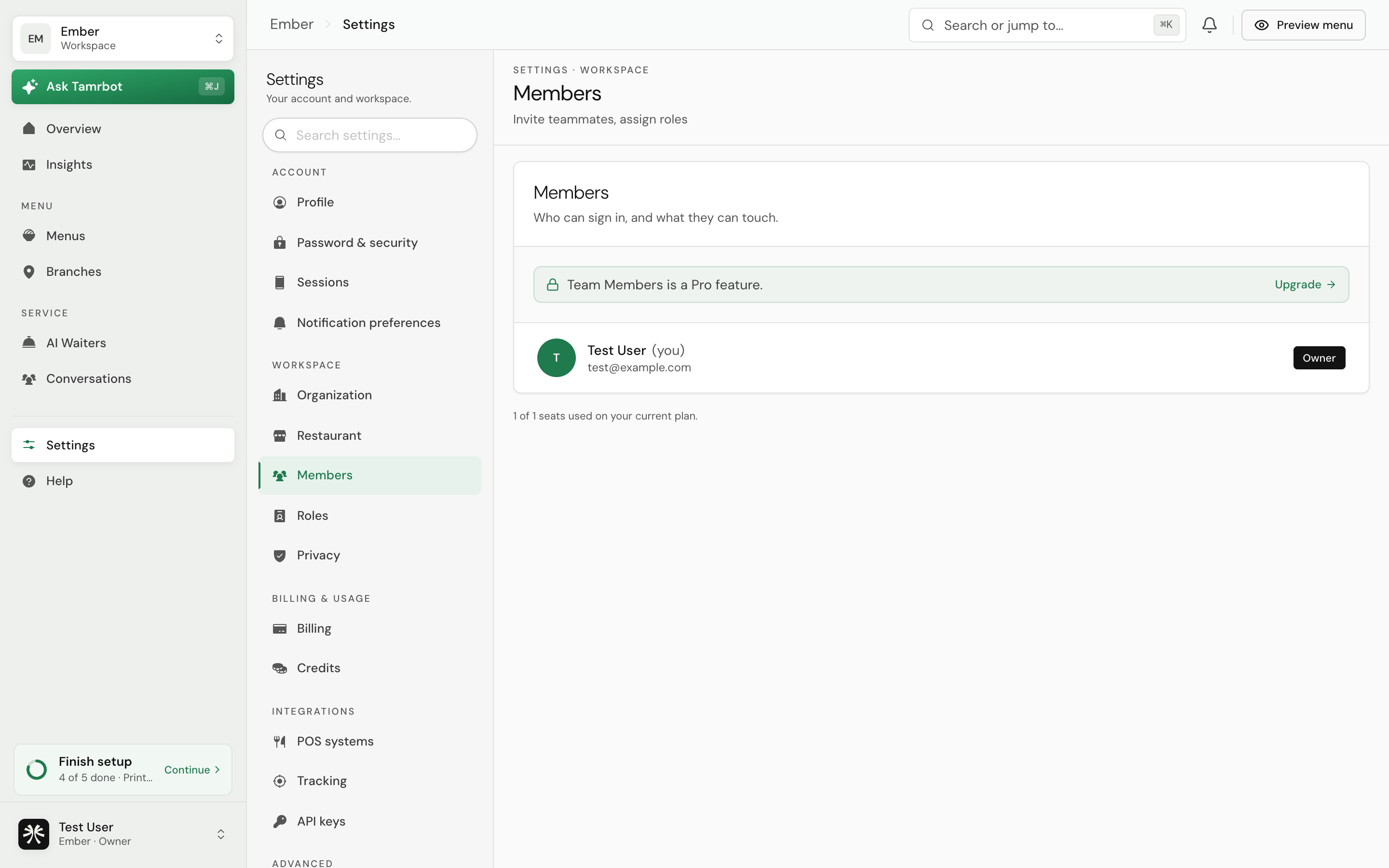
Invite a member
- 1Open Members
Go to Settings → Members and select Invite.
- 2Enter their email and role
Add the person's email and choose the role that fits what they should be able to do.
- 3Send the invitation
They receive an email to join. Until they accept, they show as a pending invitation you can resend or cancel.
Roles
OwnerfullAdminmanageMemberday-to-dayImporting and editing menus and waiters is limited to admins and owners. Members can view but not change them.
Manage people
- Change a member's role at any time from the members list.
- Remove a member to revoke their access immediately.
- Resend or cancel a pending invitation before it is accepted.
FAQ
I've hit my member limit.
Member seats are set by your plan. Upgrade to add more. See plans and billing →.
Someone left. How do I remove their access?
Remove them from the members list. Their access ends right away.
Can I have more than one owner?
Yes. Owners can promote another member to owner, which is worth doing so you are never the single point of failure.
Related
Last reviewed July 16, 2026