
Tracking pixels
The supported pixels, adding one by ID, and turning them on or off.
Tracking pixels let your own marketing and analytics tools see activity on your menu. Add them under Settings → Advanced → Tracking pixels. Tracking pixels work on Free and Pro.
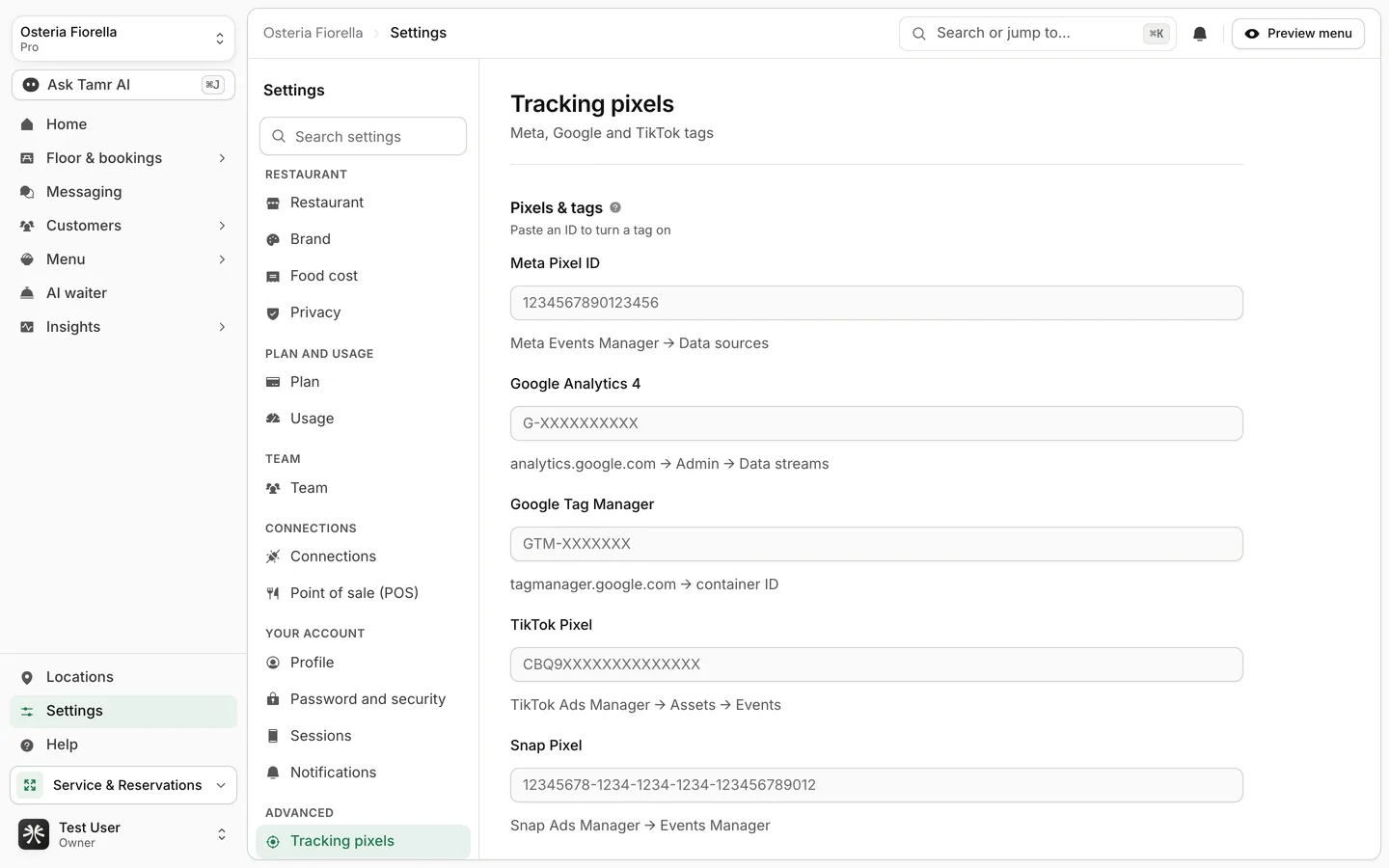
Supported pixels
- Meta Pixel (Facebook)
- Google Analytics 4
- Google Tag Manager
- TikTok Pixel
- Snap Pixel
Add a pixel
- 1Open Tracking pixels
Go to Settings → Advanced → Tracking pixels.
- 2Paste the ID
Paste the pixel or tag ID from the provider into its field, for example
G-XXXXXXXXXXfor Google Analytics 4. It saves when you leave the field, and the tag turns on. - 3Turn it off
Clear the field to turn that tag off.
These send menu activity to your analytics and ad platforms. tamr's own insights work independently and do not need any pixel.
FAQ
Where do I find my pixel ID?
In the provider's own dashboard, for example your Meta Events Manager or GA4 admin.
Can I run more than one pixel?
Yes. Each tag has its own field and runs independently.
Do I need a pixel to see analytics in tamr?
No. tamr's Insights are built in. Pixels only feed your external tools.
Related
Last reviewed October 14, 2026