
Choose the cards your AI waiter shows in chat
Cards and extras in the chat, grouped in three, plus adding, scheduling and pausing specials.
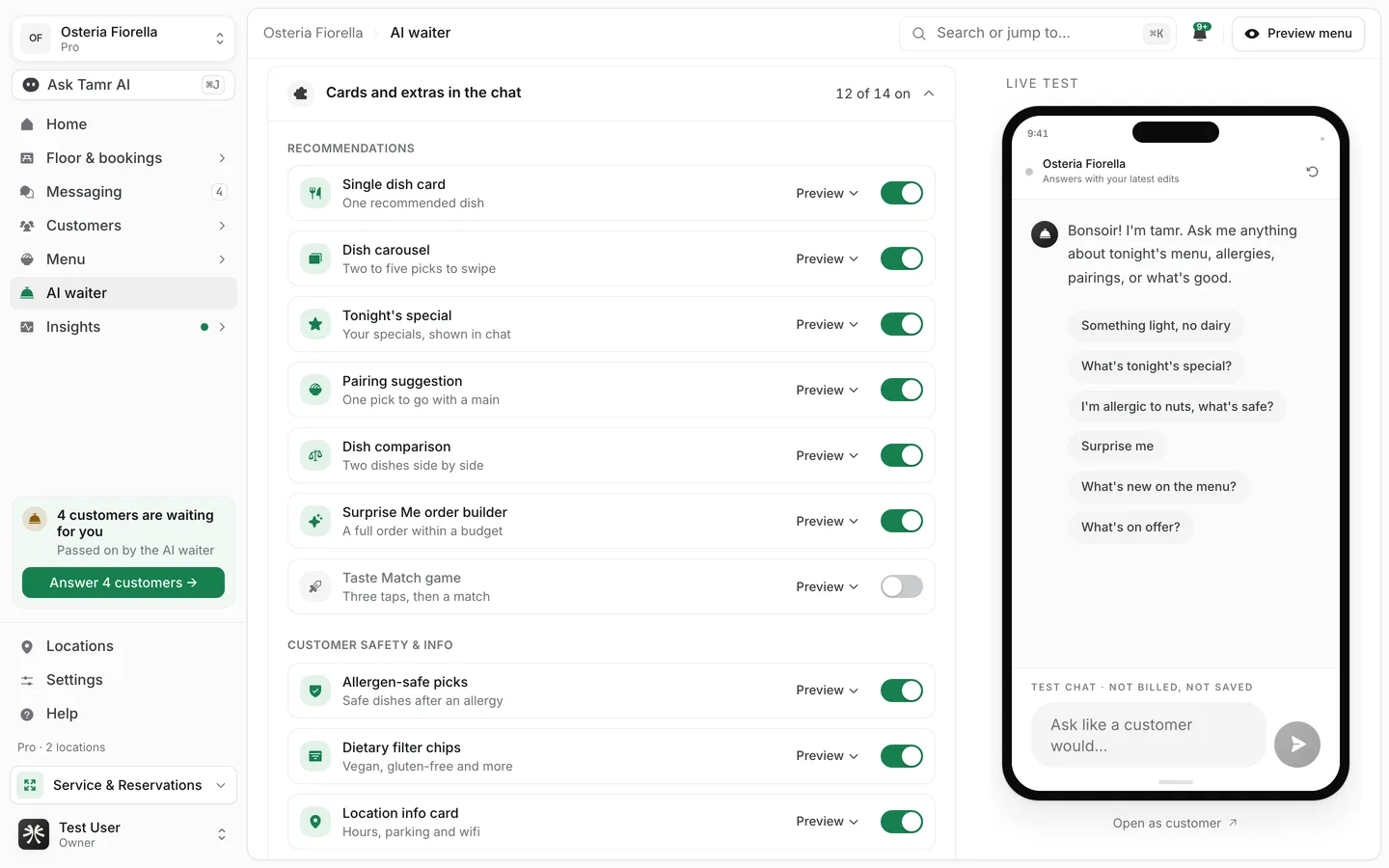
Beyond text, the waiter can answer with a dish card, a row of picks to swipe, a side-by-side comparison, tappable chips and more. You choose which ones it may use under Cards and extras in the chat, at the bottom of What it may do in the editor.
Turn cards on or off
- 1Open the list
Select Cards and extras in the chat. It is closed by default and shows how many are on, for example 12 of 14 on.
- 2Preview a card
Select Preview on a row to see a sample of it in the chat.
- 3Switch it
Use the switch on the row. On a live waiter the change waits for Publish changes, like every edit.
The cards make the chat feel like a member of your floor staff rather than a text box. Cards added to tamr later arrive switched on, unless you have changed the set yourself.
Recommendations
Single dish cardonDish carouselonTonight's specialon · specials are ProPairing suggestiononDish comparisononSurprise Me order builderonTaste Match gameoffCustomer safety and info
Allergen-safe picksonDietary filter chipsonLocation info cardonQuick taps and service
Quick-reply chipsonLanguage pickeroffSave dish for lateronRemember dietary preferenceonTwo more, Hand over to your team and Take service requests, have their own switches higher up. See what it may do →.
Run a special
Adding and editing specials is on Pro. On Free you see a preview with Get Pro. A restaurant that moves back to Free can still pause or remove specials customers already see.
A special puts one dish in front of customers for a set time. The waiter leads with it in chat, and it also shows on the menu.
- 1Open Your specials
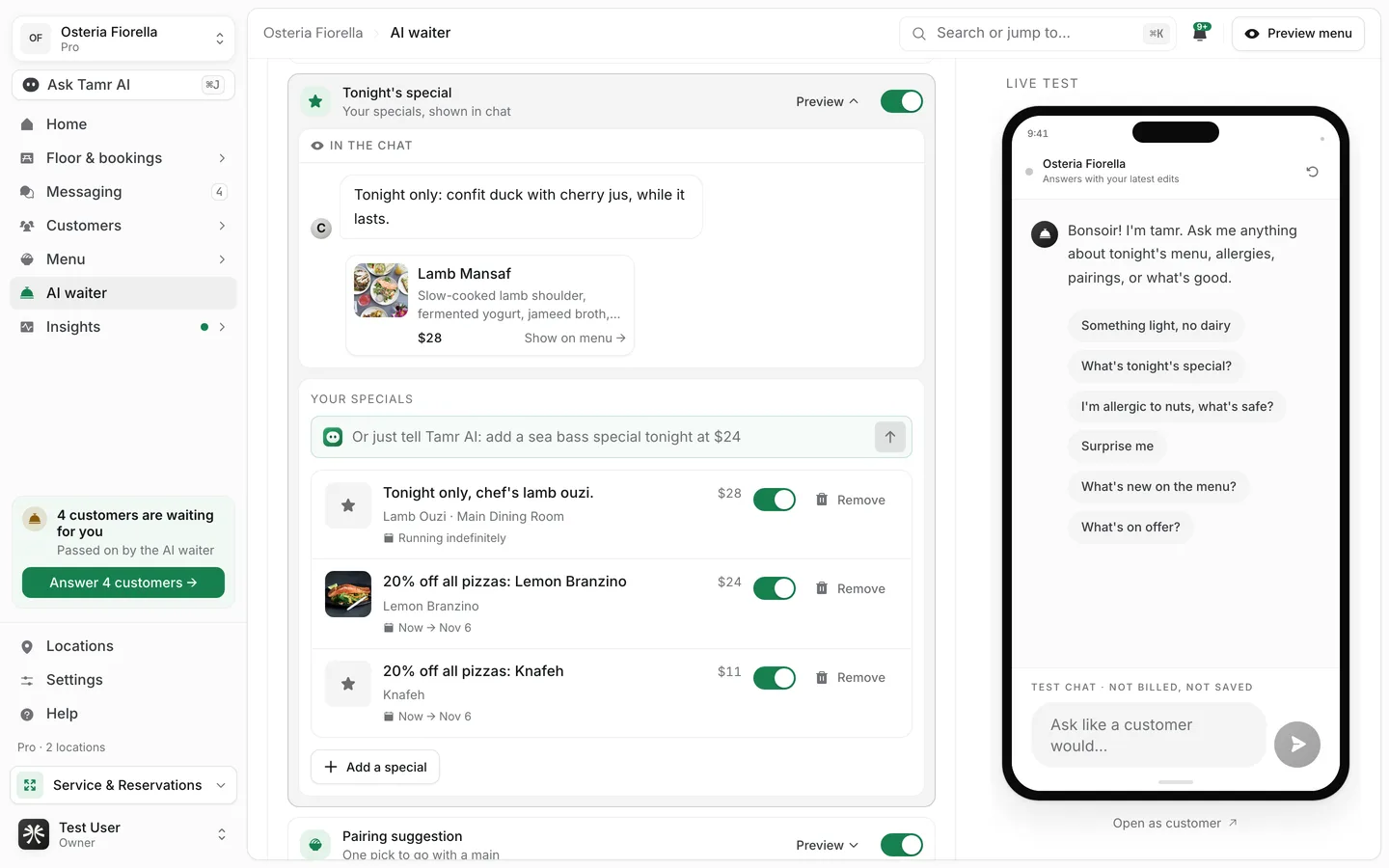
In Cards and extras in the chat, select Preview on Tonight's special. Your specials lists every special with its time window.
- 2Add a special
Select Add a special. Write a Headline (up to 80 characters), such as "Tonight only: chef's confit duck", and an optional Blurb.
- 3Pick the dish and where it runs
Choose the menu and the dish, then the Location, or leave All locations.
- 4Set the time
Set Starts and Ends. Blank starts now; blank has no end. Keep Active on, then select Add special.
Each special shows its dish, location and window, such as Now → Nov 6 or Running indefinitely. Pause or activate it with its switch, or select Remove.
You can also tell Ask Tamr AI something like "add a sea bass special tonight at $24". See Ask Tamr AI →.
FAQ
Do I have to turn any cards on?
No. All but two are on from the start: Taste Match game and Language picker are the only ones you switch on yourself.
Where do specials show to customers?
In the chat when Tonight's special is on, and on the menu. See add-ons →.
Can a special run at one location only?
Yes. Pick the location when you add it, or leave All locations.
Who can manage specials?
Owners, admins, and team members whose role allows managing specials. Everyone else can read the list.
Related
Last reviewed October 14, 2026