
Sign in and keep your account safe
Sign up with a 6-digit code, every way to sign in, password reset, invitations, two-factor authentication, the 5-attempt lockout and idle sign-out.
Your account is how you get into the tamr dashboard. You can sign in with a password, a link sent to your email, Google or a passkey, and your restaurant can add rules such as two-factor authentication.
Create an account
- 1Choose how
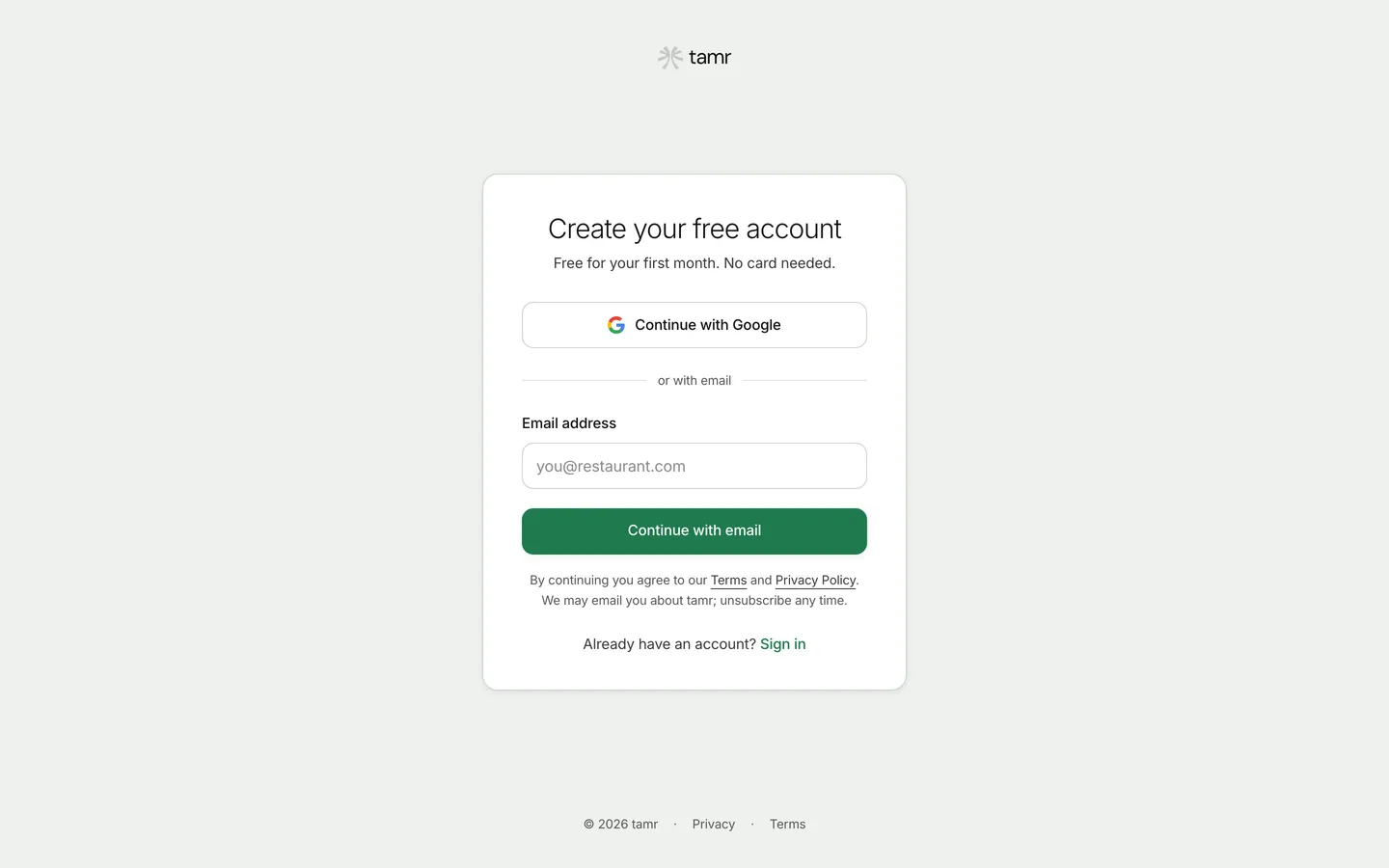
On Create your free account, select Continue with Google, or type your Email address and select Continue with email.
- 2Enter the code
With email, tamr sends a 6-digit code. Type it on Check your inbox. The code works for 5 minutes; Send a new code gets a fresh one.
- 3Set up your restaurant
You go straight into the sign-up wizard. See Get your restaurant live →.
You do not choose a password when you sign up. To add one later, see Set or change your password.
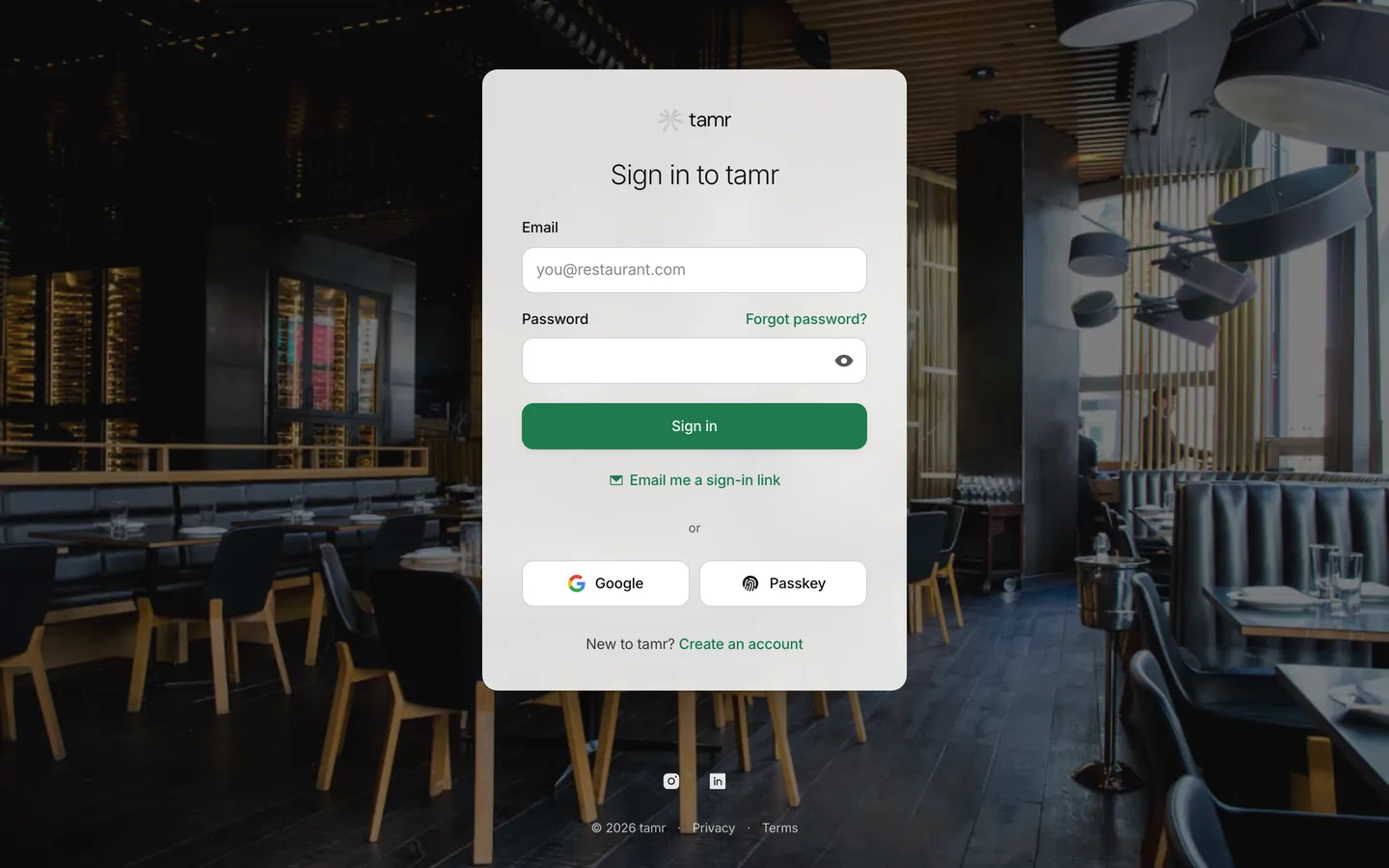
Sign in
Email and passwordstandardEmail me a sign-in linkno passwordGoogleone tapPasskeydeviceIf two-factor authentication is on, tamr then asks you to Enter your code: the 6 digits from your authenticator app.
Reset your password
- 1Ask for a link
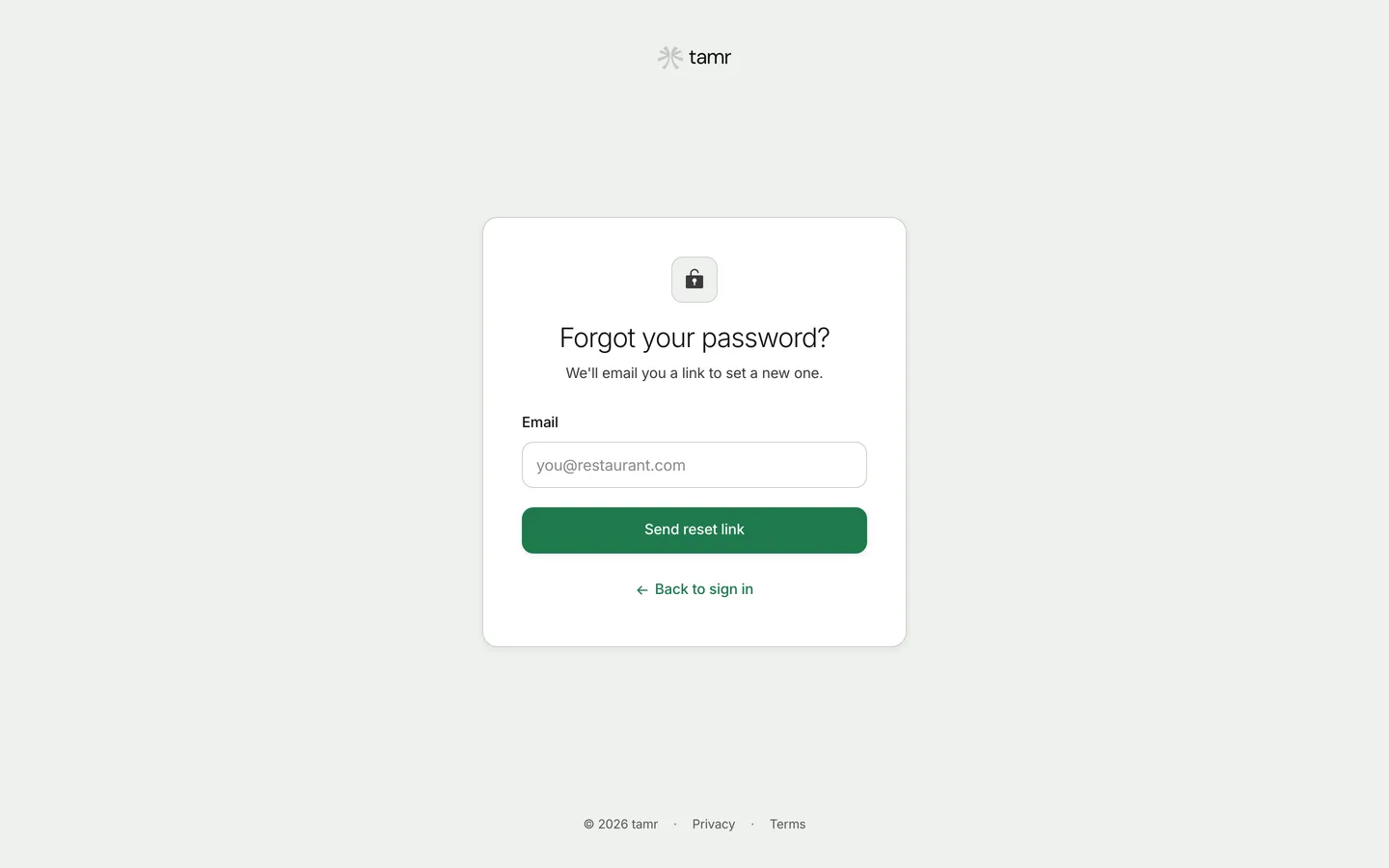
Select Forgot password? on the sign-in page, type your Email and select Send reset link.
- 2Open the email within 1 hour
The link works for 1 hour. If it has expired, the page says This link doesn't work; ask for a new one and use it within the hour.
- 3Set a new password
On Set a new password, type it and save. You see Password updated; use it next time you sign in.
Set or change your password
Open your account menu at the foot of the sidebar, select Account settings, then Security.
Set passwordno password yetChange passwordhas a passwordPassword rules12 or moreSecurity also holds Passkeys and Two-factor authentication. Active sessions lists the devices signed in to your account.
Accept an invitation
When someone invites you to their restaurant, the email links to tamr with your address already filled in.
- 1Sign up or sign in with the invited email
Use the exact address the invitation was sent to. On the sign-up page it is locked to that address.
- 2Accept
After the code, you go straight to the invitation instead of the sign-up wizard. A card asks whether you want to join the restaurant: Accept invitation or Decline.
An invitation that has expired or was already used says so: ask whoever invited you for a new one. See Team and roles →.
Wrong passwords and lockout
After 5 wrong passwords in a row, password sign-in to that account is paused for 30 minutes, and tamr emails you to say so.
- While it is paused you can still sign in with Email me a sign-in link, Google or a passkey, or reset your password.
- After 30 minutes, password sign-in works again on its own.
- After a few wrong tries, tamr may ask you to confirm you are a person before it checks your password.
Idle sign-out
The dashboard signs you out after 30 minutes without activity, so a tablet or a back-office computer left open does not stay signed in. A minute before, you see Still there? You'll be signed out in a minute. Any click keeps you signed in. If you are signed out, tamr tells you it was after a period of inactivity.
Set your restaurant's sign-in rules
Owners and admins can change these in Settings → Members, under Sign-in security.
Require two-factor authenticationswitchPause sign-in after wrong passwords3 · 5 · 10Sign out when idle15 min to 8 hIf you belong to several restaurants, the strictest of their rules applies to your account.
tamr will never email or message you asking for your password or a sign-in code. If something does, do not answer it.
FAQ
I didn't get my code, link or reset email.
Check spam, check the address, and ask again. Codes work for 5 minutes, sign-in links for 15 minutes and reset links for 1 hour, so always use the newest one.
I signed up with a code. What is my password?
You do not have one yet. Sign in with Email me a sign-in link or Google, or set a password from Account settings → Security.
My invitation sent me to the sign-up wizard instead of the restaurant.
You signed up with a different address from the one invited. Ask for a new invitation to the address you use.
Related
Last reviewed October 14, 2026