
Import a menu
Every import source, its limits, how progress shows, and how to fix a failed import.
You do not type a menu from scratch. tamr reads the menu you already have and turns it into categories and dishes with names, prices and descriptions that you can then edit. Importing is included on every plan and usually takes about a minute.
Choose a source
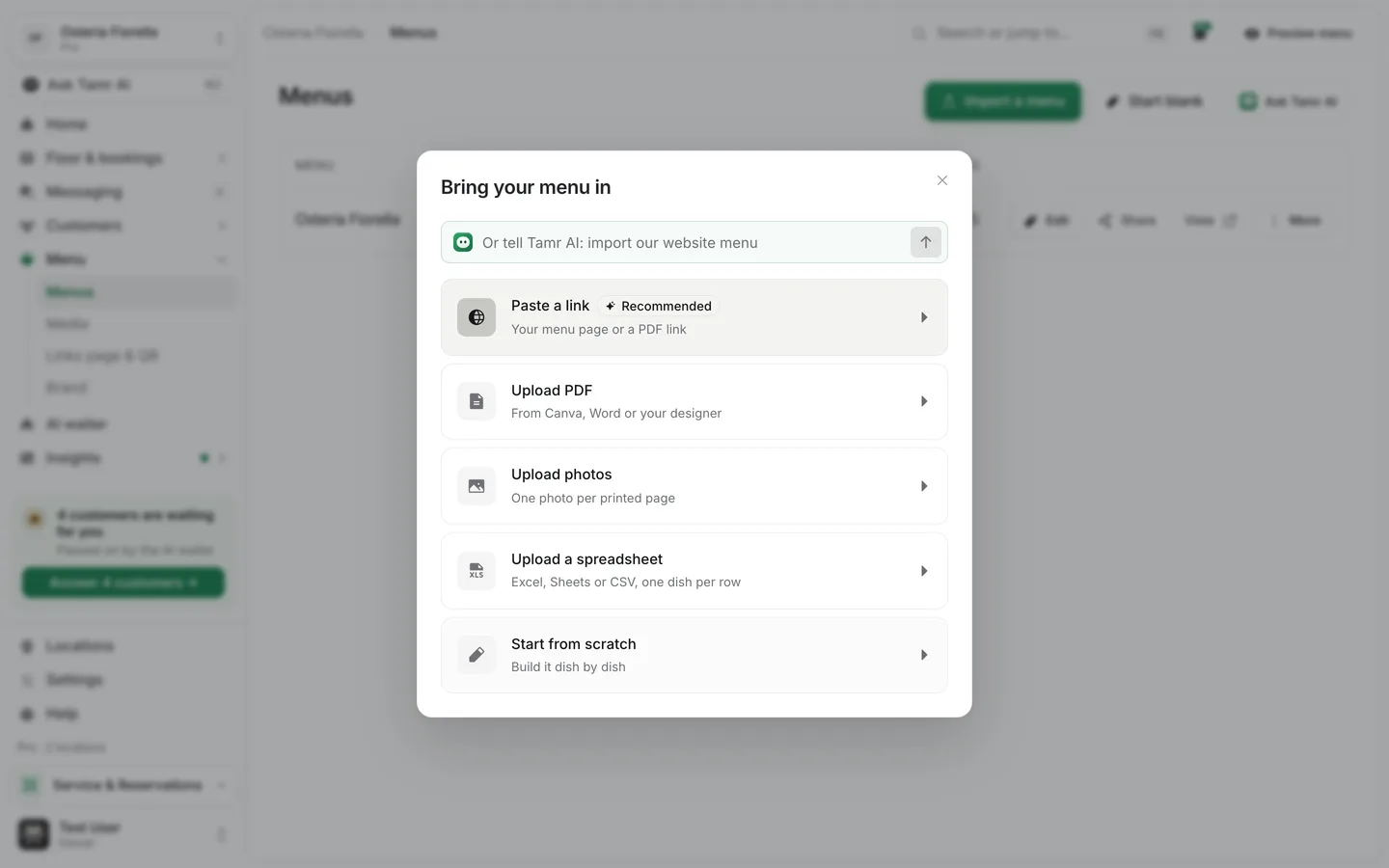
On Menus, select Import a menu. The Bring your menu in dialog offers five sources.
Paste a linkrecommendedUpload PDFup to 25 MBUpload photosup to 20 photosUpload a spreadsheetfileStart from scratchblankYou can also type into the Ask Tamr AI field at the top of the dialog, for example "import our website menu", and Tamr AI starts the import for you.
Import step by step
- 1Open the importer
On Menus, select Import a menu and pick a source.
- 2Add your source
Paste the link, drop the PDF, or add the photos. tamr checks the file type and size before anything uploads, and skips any photo it cannot use with a short note.
- 3Let tamr read it
tamr uploads the source, creates the menu and opens the editor so you can watch categories fill in as they are read. You can leave the page; the import keeps running.
- 4Review and refine
An import is a starting point. Check prices and categories, fix anything misread, then complete the dishes. See edit dishes →.
Follow the progress
A link import shows three steps: Verify URL, Load page and Read dishes. A PDF or photo import shows Read source and Extract dishes. Categories appear in the editor as they are read, and dish photos found in the source fill in shortly after the text.
- The Menus list refreshes by itself while an import runs.
- A finished import opens as a Draft menu. Nothing is visible to customers until you publish.
- A failed import shows Failed on the menu, with Try again and Delete.
Fix a failed import
Too many imports runninglimit · 3We couldn't read enough of this menulow coverageCouldn't start the importsourceSome restaurant websites block automated reading. When a link fails, upload the PDF or photos of the printed menu instead. They work when a website will not.
Update a menu from a new version
When your printed menu changes, you do not need a second menu. Open the menu, select More, then Update from a new version, and give it a link, a new PDF or photos. The new reading is merged into the dishes you already have: your edits stay, nothing is deleted, and the update can be undone for a day.
To change many dishes at once by hand, use More → Edit many dishes, or switch the Dishes tab to the Table view.
FAQ
Does importing cost anything?
No. Importing is included on every plan.
The import missed or garbled some dishes.
Low-resolution scans and busy designs cause a few errors. Fix them in the editor, or import again from a cleaner PDF.
Can I sync dishes from my POS instead?
Yes, on Pro. Connecting a point of sale keeps dishes, categories and prices in step with your till. See connect your POS →.
Related
Last reviewed October 14, 2026