
Ask Tamr AI about your restaurant
The Ask Tamr AI page and chat history, the ⌘J panel, inline suggestions with Apply, Edit and Try again, the Ask Tamr AI fields in add dialogs, and Free vs Pro limits.
Ask Tamr AI is the assistant for you and your team. Ask it about your numbers, your menu or tonight's bookings in plain language, or ask it to make a change. It is not the AI waiter: customers never see it.
Where to find it
The pagefull pageThe panel⌘J / Ctrl+JIn placeinlineAdd dialogsfieldUse the Ask Tamr AI page
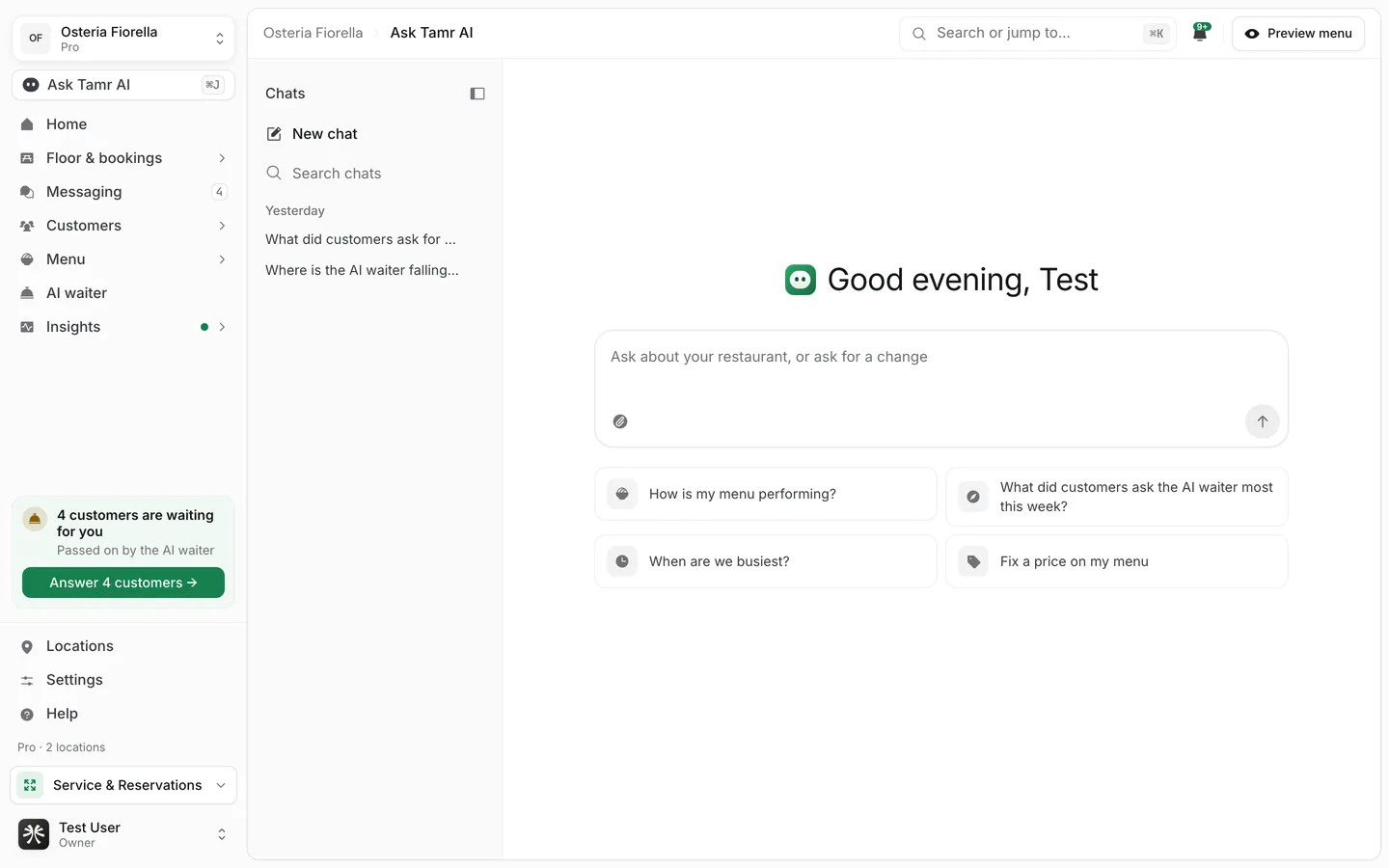
The page keeps every chat you have had, so you can come back to an answer.
- 1Start a chat
Type in Ask about your restaurant, or ask for a change, or pick a suggestion such as How is my menu performing? or Fix a price on my menu. Picking a suggestion fills the box so you can adjust it before sending.
- 2Attach a file if it helps
Use the paperclip to attach a photo or PDF, for example a printed menu to import.
- 3Find an earlier chat
The Chats list groups chats by date. Use Search chats to find one, and the ... menu on a chat to Rename, Pin or delete it. New chat (⇧⌘O) starts a fresh one.
- 4Ask again
Hover an answer and select Ask again to get a new one. A question that never got an answer shows This question has no answer yet. with an Ask again button. Asking again uses one question from your daily allowance, and the repeat stays in the chat.
Use the panel on any page
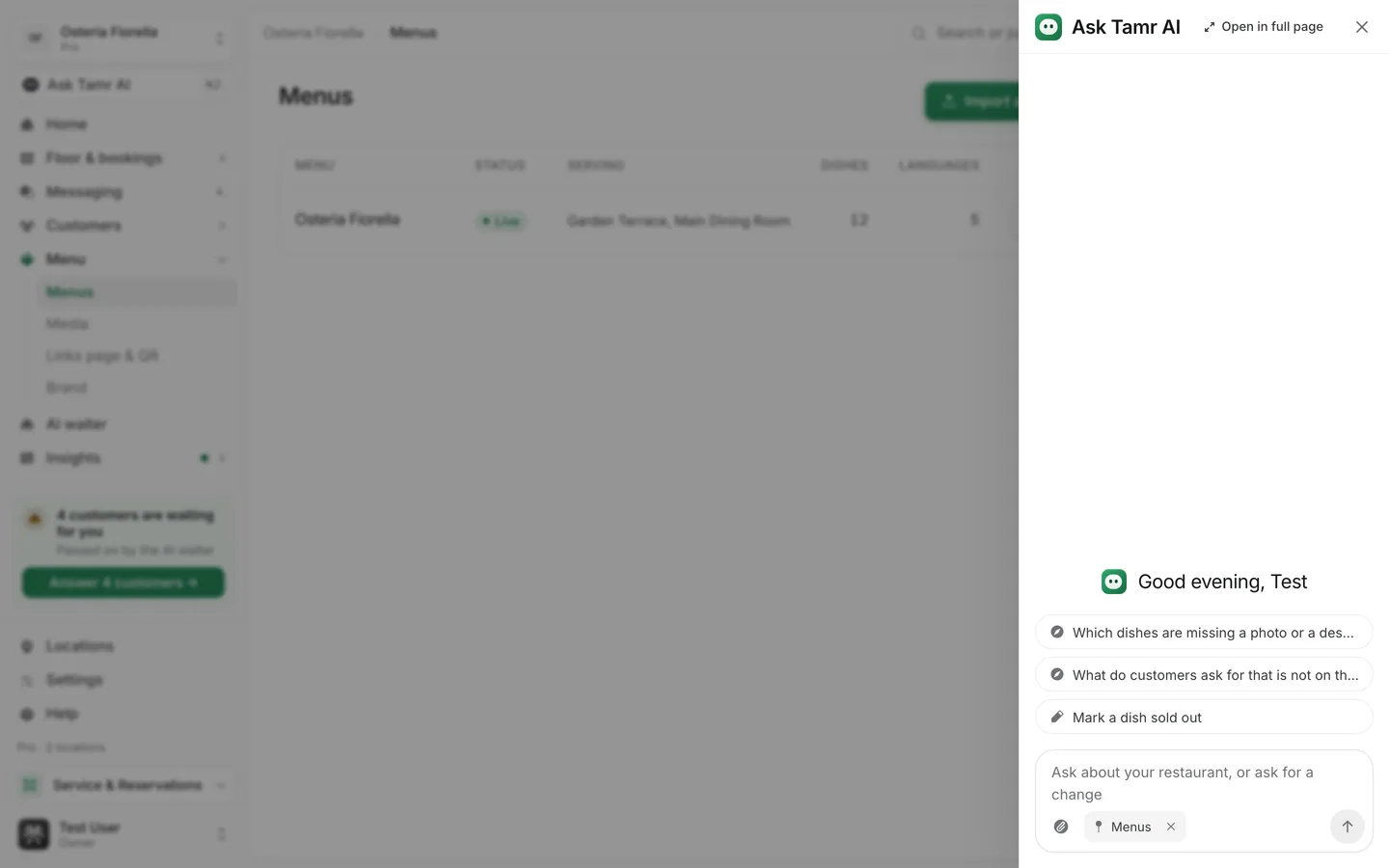
The panel opens along the right edge of the screen and stays beside the page you are working on. It knows which page you are on: a chip under the message box, for example Menus, carries that context with your question. Remove the chip to ask without it. The suggestions change with the page.
Open in full page moves the chat to the Ask Tamr AI page, where it continues with its history.
Get suggestions in place
For one field, Ask Tamr AI answers right where you asked, in a small card beside the thing it is about. It does not open the panel.
Dishesmenu editorPopups and campaign messagescampaignsOn the Housegestures- 1Ask
Open the Tamr AI menu on a dish, or select the Tamr AI button next to a field.
- 2Review the card
The card shows the proposal. Select Edit to change it first. Dietary tags arrive ticked one by one; allergens are marked Allergens: check each one, and only the ones you leave ticked are applied.
- 3Apply, retry or discard
Select Apply to save it the way a typed value is saved, Try again for a different proposal, or close the card to discard it. Nothing is saved until you select Apply.
AI photos, bulk descriptions and auto-translate across the menu are Pro features. See plans and billing →.
Tell Tamr AI instead of filling a form
Add dialogs have a one-line field at the top, for example Or tell Tamr AI: add our Hamra location, open 9 to 11 or Or just tell Tamr AI: 6 tables of 2 on the terrace. Type what you need and press Enter: the dialog closes and the Ask Tamr AI panel opens with your request, ready to send.
What it can do
- Answer questions about your Insights, conversations, dishes, bookings, floor and customers, using your own data.
- Edit dishes, prices, categories and sections, and publish or unpublish a menu.
- Import a menu from a link or a file, and build a menu from scratch.
- Set up the AI waiter and attach it to a menu.
- Add locations, specials and tables, and edit the floor plan.
- Take, change, seat and cancel bookings, and seat walk-ins.
- Mark Money findings done or dismissed.
Every change is shown to you first. A change appears in the chat with Approve and Deny; a menu change opens a preview of your menu with Before and After, and Publish and Discard. Nothing changes until you approve it, and a change that was not approved says so.
What it can change depends on your role and plan. A teammate whose role cannot edit can still ask questions, but changes are refused. A change to a Pro feature, such as bookings or the floor, is refused on Free, and Ask Tamr AI tells you it is a Pro feature rather than guessing an answer.
Daily allowance
| Free | Pro | |
|---|---|---|
| Ask Tamr AI questions a day, for the whole restaurant | 5 | 150 |
| Questions in one chat | 60 | 60 |
In-place suggestions count against the same daily allowance. When it runs out you see You've used today's questions; it resets the next day. When one chat reaches its limit you see This chat is full: start a new chat to keep going.
FAQ
Can customers see Ask Tamr AI?
No. It only exists inside the dashboard. Customers talk to the AI waiter on your menu.
Does it make changes without asking?
No. Every change waits for your Approve, Publish or Apply.
Why does the field in an add dialog close the dialog?
The panel opens beside the page and cannot be used under a dialog, so the dialog closes and your request moves to the panel.
Can I use tamr from Claude or another AI assistant?
Yes, on Pro, through the MCP server under Settings → Connections. See API keys and MCP →.
Related
Last reviewed October 14, 2026