
Serve your menu in your customers' languages
The language switcher, the one-tap suggestion, translated interface languages, right-to-left, and the menu's Languages settings.
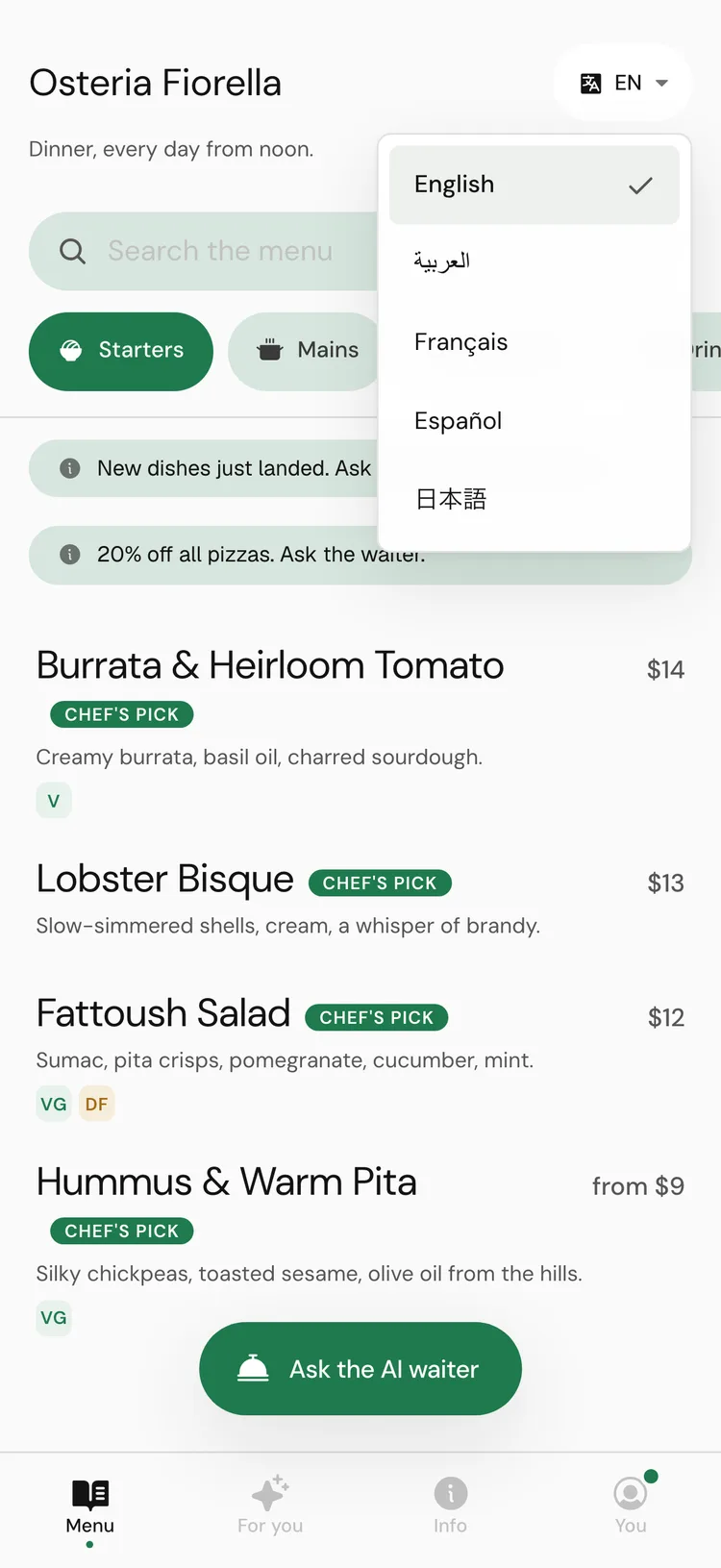
Customers can read your menu and talk to the AI waiter in their own language. You choose which languages a menu offers; customers pick from a switcher in the menu header.
How it works for customers
- 1tamr suggests their language
On a first visit, if the phone is set to a language the menu offers, a one-tap line appears: "Read this menu in French?" It is a suggestion, never an automatic switch, and it is offered once per restaurant.
- 2They pick a language
The Menu language switcher in the header lists every language the menu offers. The menu content, the interface labels and the chat all switch.
- 3It is remembered
The choice is saved for your restaurant, so another of your menus opens in the same language.
Which languages are supported
Menu contentany languageInterface labels5 languagesThe AI waitercustomer's languageRight-to-left
For Arabic and other right-to-left languages (Hebrew, Persian, Urdu and more), the whole menu and the chat lay out right-to-left, including panels that open over the menu.
Choose the languages a menu offers
In the menu editor, open Settings → Languages.
Your menu is written insourceCustomers can also read it inlistAdd a languageProAdding a language is on Pro. On Free, the languages a menu already offers stay on it and stay removable, and customers can still chat with the waiter in their own language.
FAQ
Do I have to translate the menu myself?
No. Add the language and tamr translates your dishes, and keeps the translation in step when you edit the menu.
Why don't I see a language switcher on my menu?
It appears when the menu offers more than one language.
Can the AI waiter answer in a language the menu is not translated into?
Yes. The waiter's languages are separate from the menu's. With no restriction, it answers in whatever language the customer writes in.
Related
Last reviewed October 14, 2026