
Design a menu and set its languages
Layout, brand, cover, browsing, the AI waiter tab, languages, prices and where a menu is served.
Each menu has its own look and its own settings. The Design tab decides how the menu looks, the AI waiter tab what the waiter knows about it, and Settings where it is served and in which languages. The phone preview beside the editor updates as you change things.
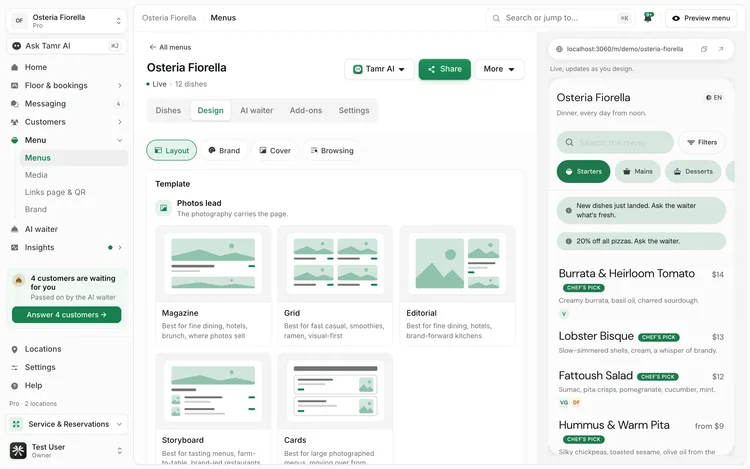
Design tab
The Design tab has one row of parts: Layout, Brand, Cover, Browsing, and Sections when the menu has sections. The row stays in place while the part below it scrolls.
Layout
Templates come in two groups. Photos lead layouts let the photography carry the page; Words lead layouts read the same with photos or without. Each card says what kind of restaurant it suits.
Photos leadgroupWords leadgroupWhen you pick a photo-led layout and most dishes have no photo, the card warns Most dishes have no photo yet, because the page would show empty frames.
Classic and Compact are free and already carry your logo, colour and photos. Every other layout is part of Pro. On Free, picking one opens a short Pro card instead.
Brand
A menu uses your restaurant's brand from the Brand page → until you change it. The card at the top reads Uses your brand, with a Brand and a Customise switch.
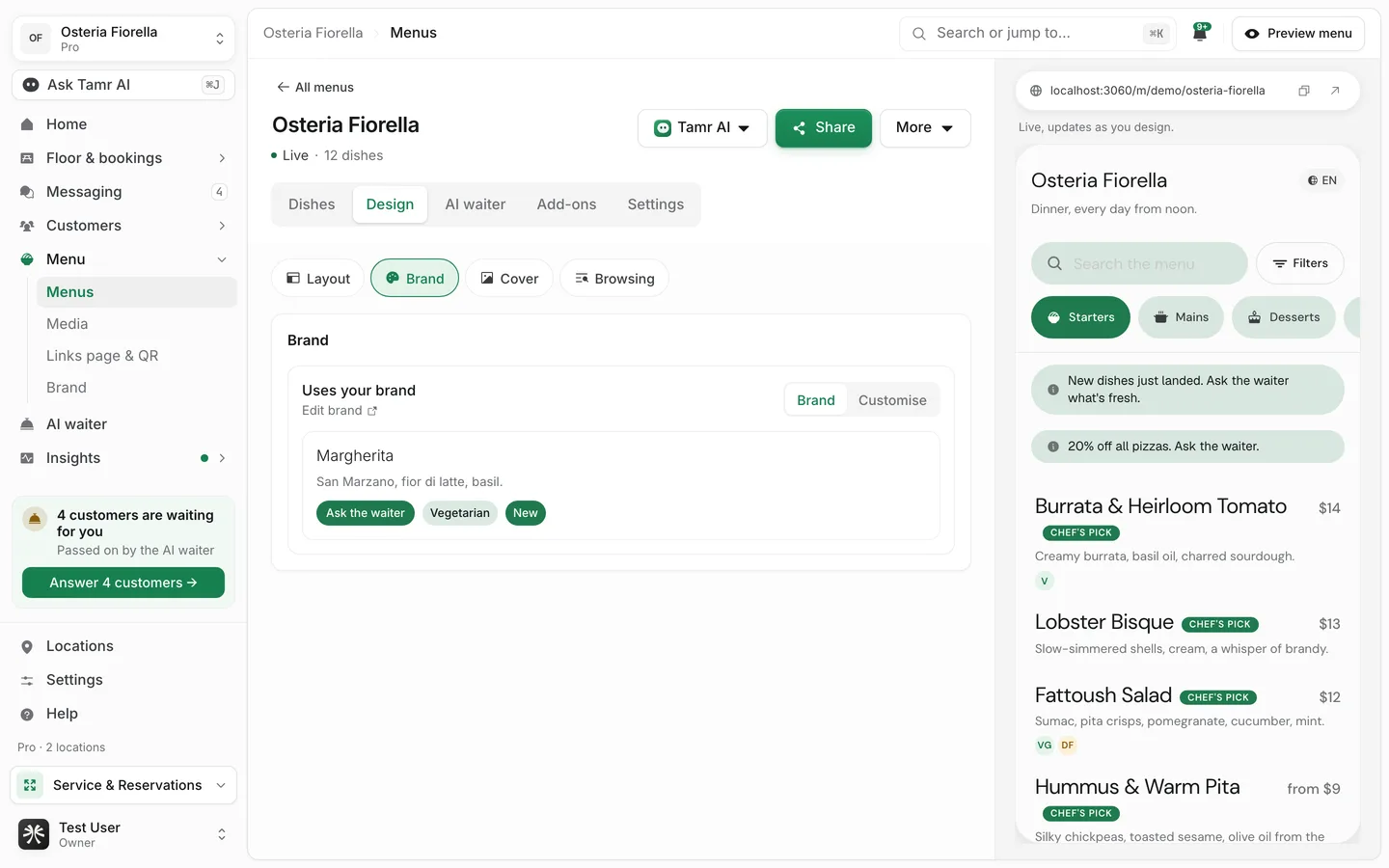
- Customise gives this menu its own logo, main colour, second colour, background, colour strength (Subtle, Balanced or Bold), fonts and headline style, and Hide restaurant name when the logo carries it.
- Brand goes back to the restaurant brand and clears this menu's own values.
Your logo, main colour and background are free. A second colour, your own fonts and hiding the name behind the logo are part of Pro.
Cover
The Cover and subtitle part holds the cover photo (1600 × 900 px, up to 5 MB) and an optional subtitle. A Where it shows box beside them tells you exactly where each one appears for the layout you chose.
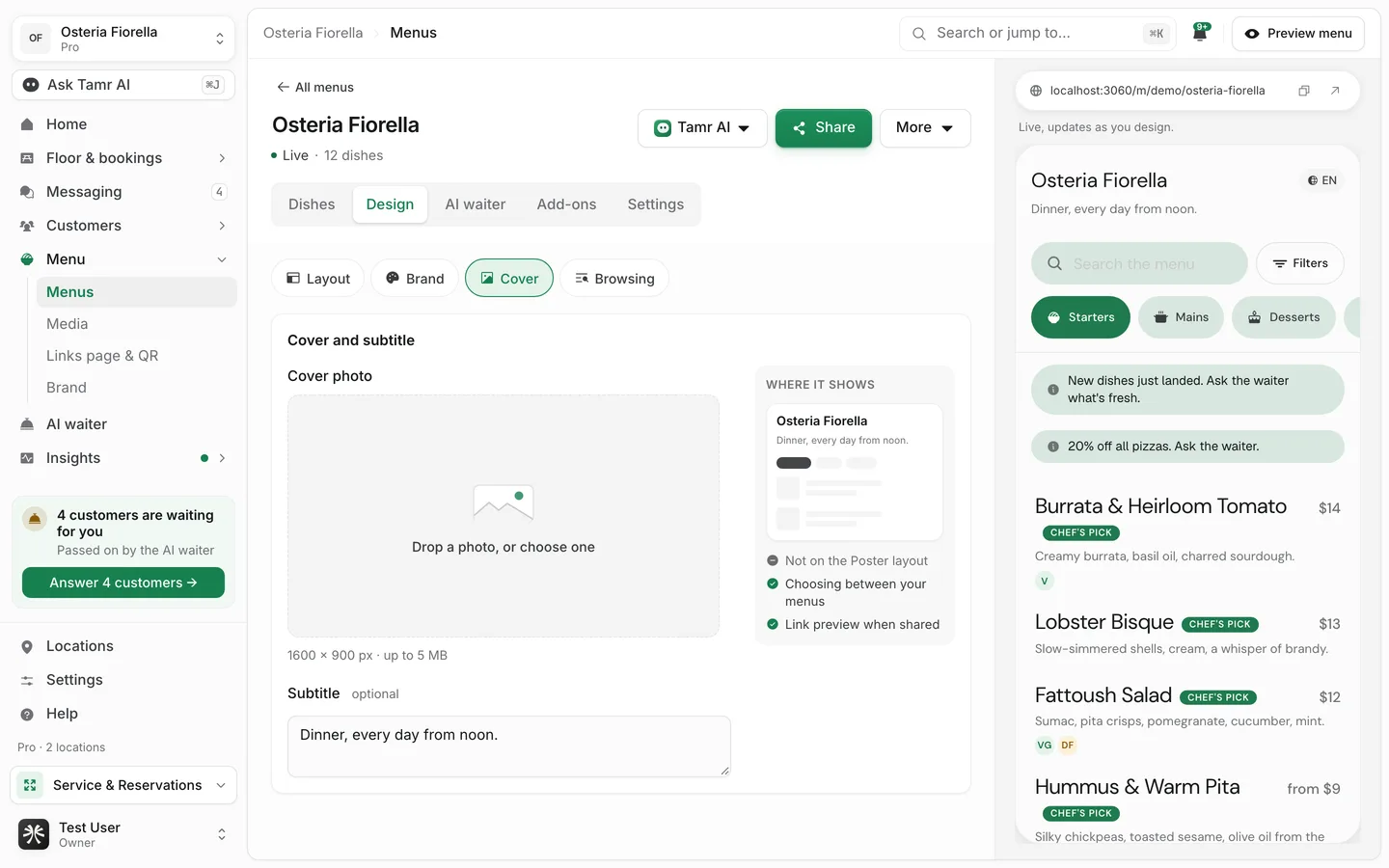
Cover photoimageSubtitleoptionalBrowsing and Sections
Show every category in one scrolltoggleShow a For You tabtoggleAsk customers to pick a section firsttoggleAI waiter tab
Everything the AI waiter needs that belongs to this menu.
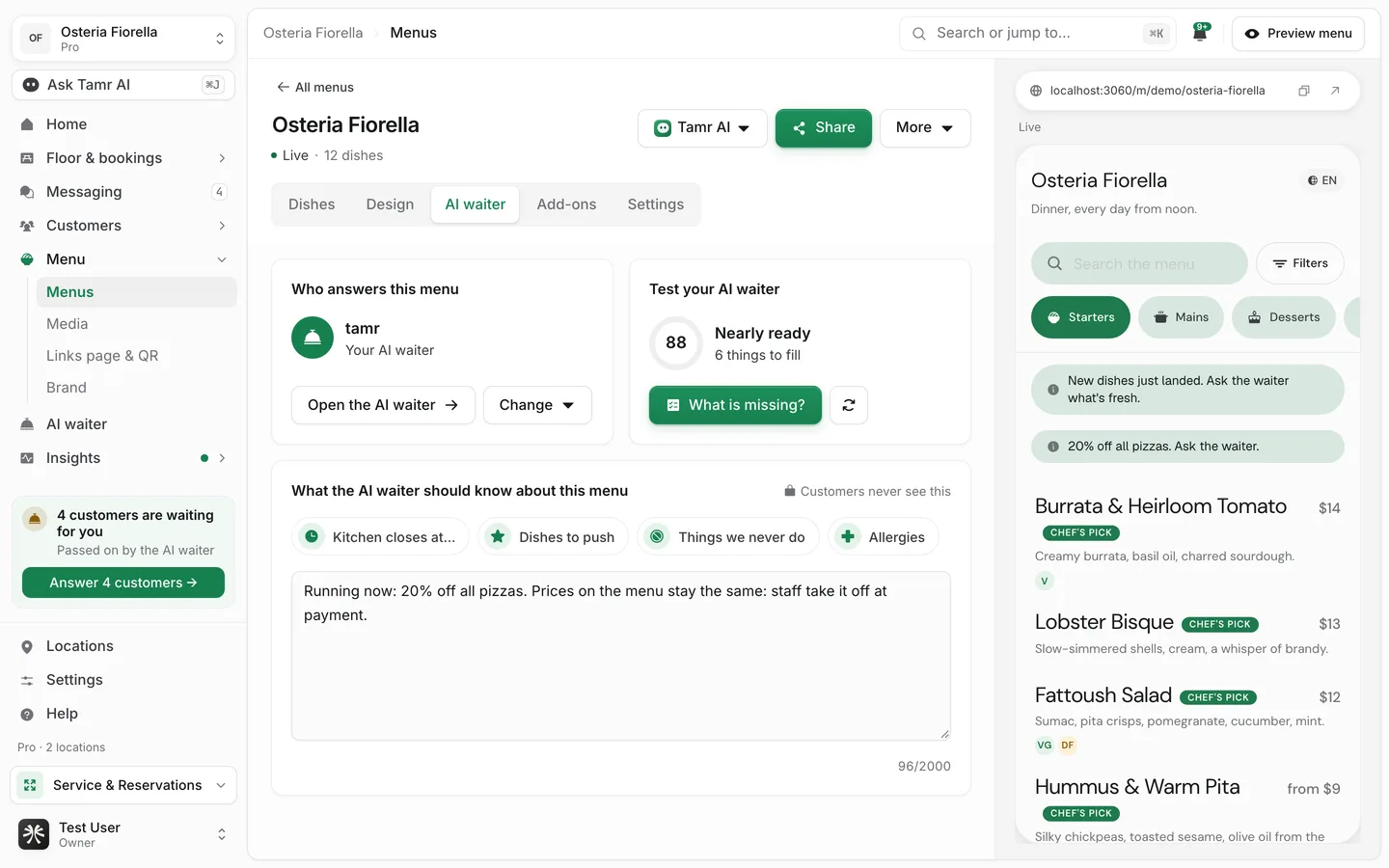
Who answers this menucardTest your AI waitercardWhat the AI waiter should know about this menu2,000 charactersHow the waiter talks (tone, greeting, house rules) stays on the AI waiter page. See house rules →.
Settings tab
Settings has four parts: Info, Locations, Languages and Feedback.
Locations: where and how the menu is served
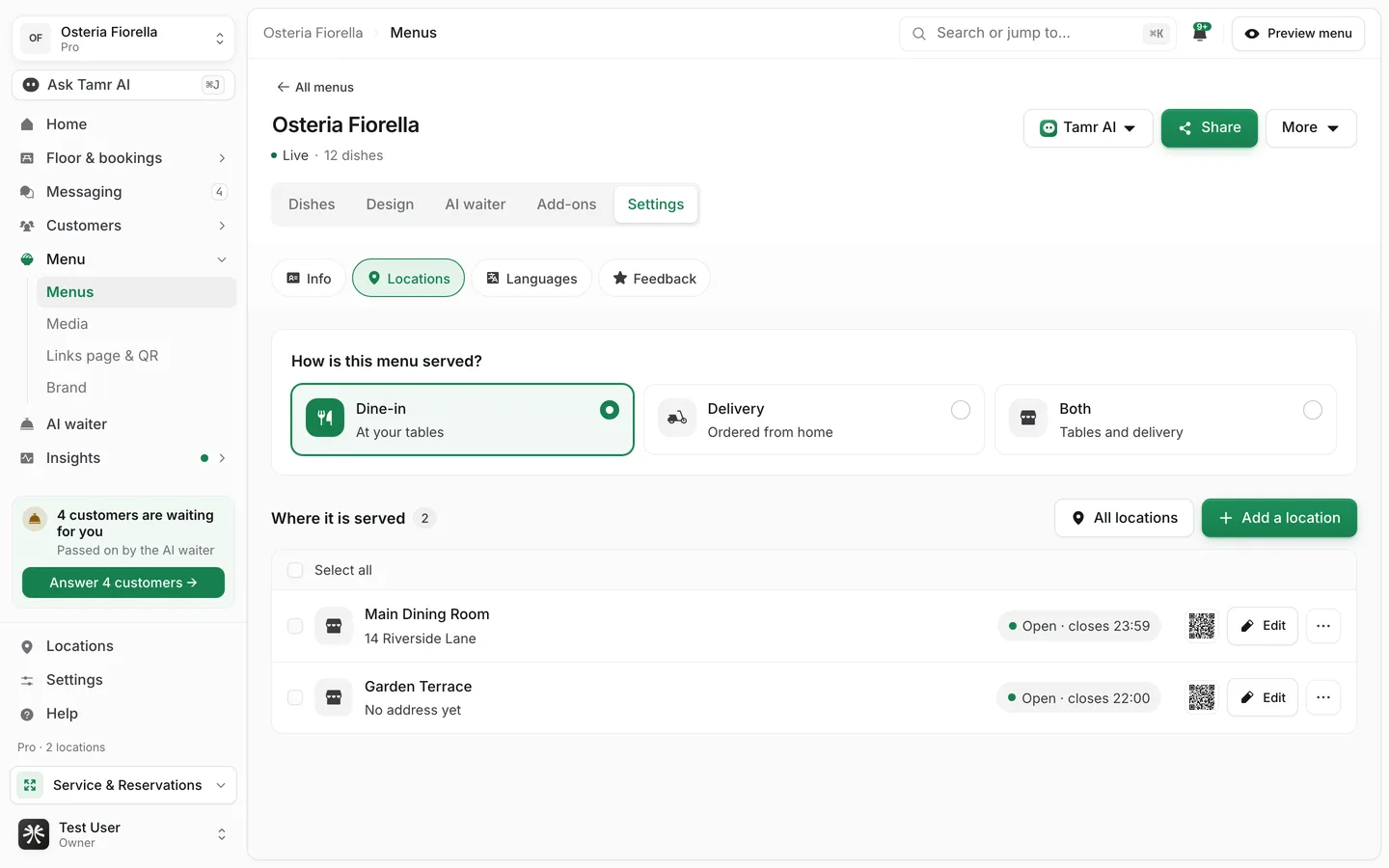
How is this menu served?choiceWhere it is servedlocationsA live menu needs at least one location. To remove the last one, take the menu offline first.
Languages and prices
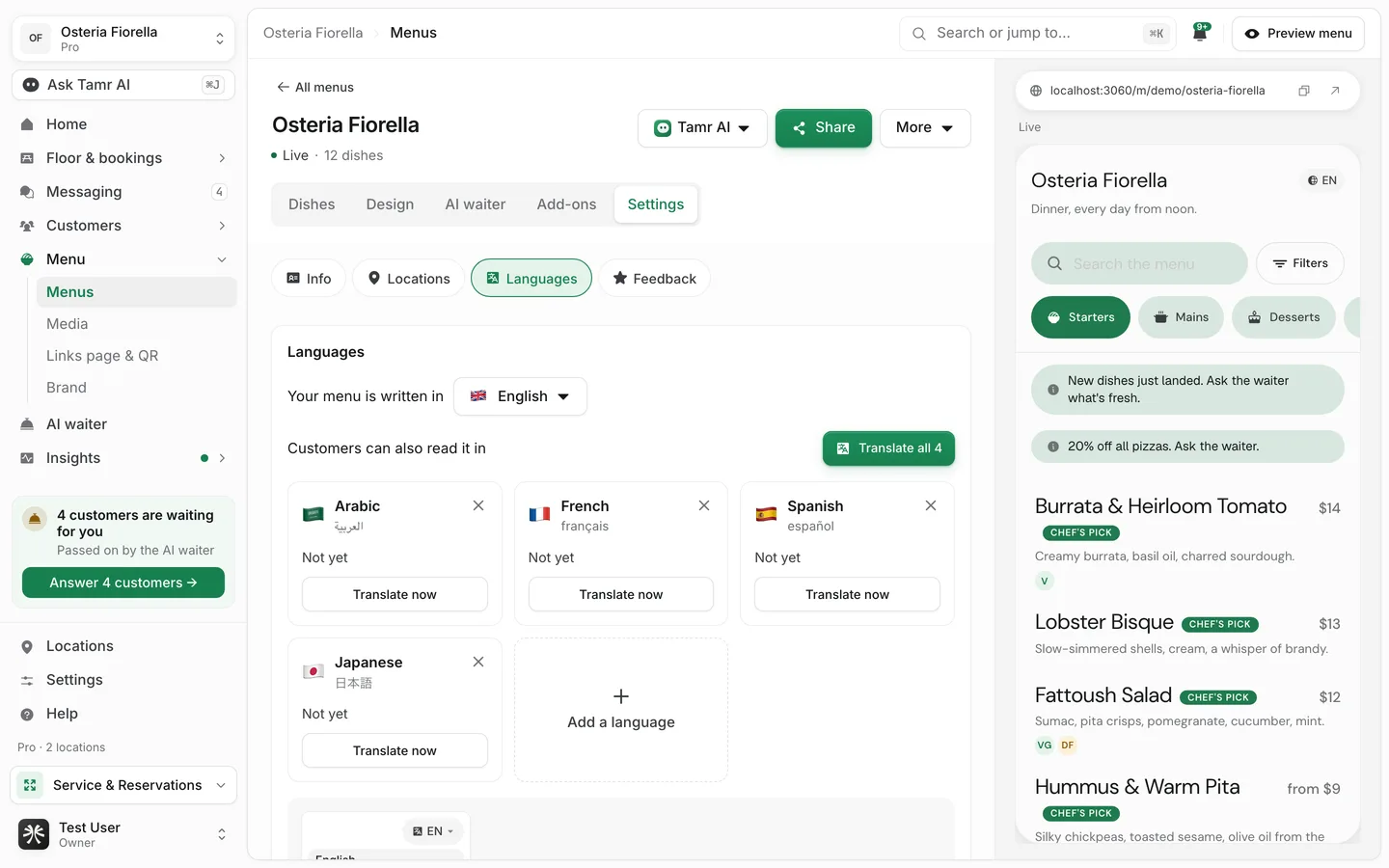
- 1Set the source language
Your menu is written in is the language you type in.
- 2Add languages
Under Customers can also read it in, select Add a language and search the list. Customers switch language at the top of your menu.
- 3Translate
Each language card shows its progress, for example "8 of 12 dishes", or Translated. Select Translate now on one card, or Translate all when several are behind.
Under Currency and prices, pick the currency and How prices are written: With the symbol ($12.50), With the currency code (USD 12.50) or Number only (12.50).
Adding a language is part of Pro. On Free, the languages already on your menu stay, and you can still remove one. The AI waiter answers in any language on every plan. See languages →.
Info and Feedback
Info holds this menu's identity (name, tagline, description, cuisine tags), a hero image, links (website, Instagram, Facebook, WhatsApp, Google review link) and the AI disclosure switch. Each field falls back to your restaurant settings unless you set it here.
Feedback turns on the feedback card customers see on the menu. See feedback →.
Share the menu
The green Share button beside the menu's name shows whether the menu is live, its QR code (PNG or SVG), its address with Copy, Tracked links and sources, and Change the address. Renaming a menu's address breaks QR codes already printed for it, so change it before you print. For your restaurant's main link and every table code, use Links page & QR →.
FAQ
Why does my cover not show on the menu?
On most layouts the cover is used when customers choose between menus and in link previews, not at the top of the menu. Only Magazine puts it at the top. Where it shows says which applies.
I changed my brand colour and one menu did not change.
That menu is set to Customise. Open Design → Brand and switch it to Brand.
Can two menus serve the same location?
Yes. A dine-in menu and a delivery menu can both serve one location. The Locations part notes when a location already serves another menu.
Related
Last reviewed October 14, 2026