
Edit dishes
Every dish field, the one photo field, and the Tamr AI helpers on dishes and menus.
The Dishes tab is where a menu becomes useful, both for the customer reading it and for the AI waiter answering questions about it. This article covers categories, every field on a dish, and the Tamr AI helpers that draft what is missing.
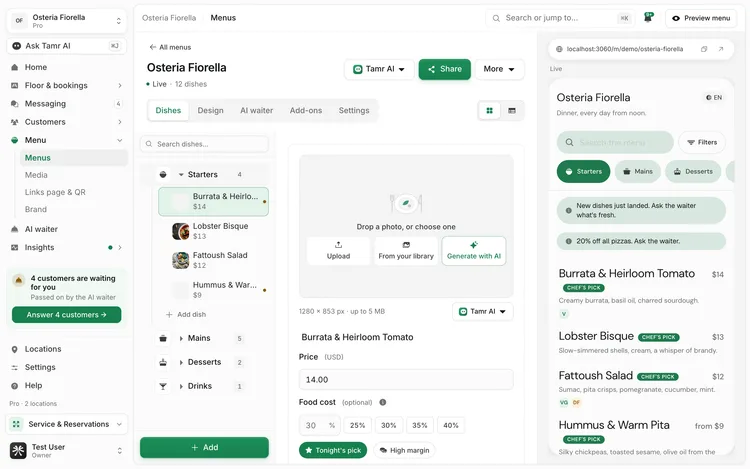
Work with categories and dishes
The rail on the left lists your categories, such as Starters or Mains, with their dishes underneath. Drag to reorder, and select a dish to open it.
- 1Add a dish
Select Add dish under a category, or Add at the foot of the rail. The Add a dish dialog asks for the category, a dish name and a price, then Add dish. If a dish with that name already exists, tamr offers to open it instead.
- 2Or ask Tamr AI
The same dialog has an Ask Tamr AI field on top. Type a request such as "add a lentil soup to Starters" and Tamr AI adds it for you.
- 3Place a dish in more than one category
On the dish, select Add to another menu category. One placement is the Primary one, its home category. Use Make primary to move that role, and remove any other placement when you no longer need it.
For many dishes at once, switch to the Table view with the icons at the top right of the tab, or use More → Edit many dishes.
Edit a dish, field by field
Only the name is required. Everything saves as you type, with a small Saving and Saved indicator; there is no save button.
Dish photoimage · 3:2NamerequiredPricenumberSizesoptionalFood costoptional · %Tonight's picktoggleHigh margintoggleDescriptiontextDietary & allergensfixed listsWaiter's noteprivateDetails & nutritionoptionalTemporarily unavailabletoggleCustomers never see it, but the AI waiter uses it at the right moment. Use it for house knowledge:
The muhammara has walnuts, flag it for nut allergies. Pairs with the Syrah.
Add a dish photo
Every dish has one photo field. When it is empty you can Upload, choose From your library, or Generate with AI. When it has a photo, the same choices show as Replace, Library, Generate with AI and Remove. You can also drop a file straight onto it.
Size1280 × 853 pxFrom your libraryMediaGenerate with AIProSet allergens and dietary tags
Allergens and dietary tags come from fixed lists, so they stay consistent and customers can filter the menu by them.
Dietary tags
Allergens
When tamr reads allergens or diet labels from a dish's text, it shows them under What Tamr read in this dish for you to accept or turn down. Anything you untick is never suggested again.
Mark allergens on every dish. When a customer raises an allergy, the AI waiter uses this data and always hands the question to your staff to confirm. See allergens and dietary →.
Use Tamr AI on a dish
The Tamr AI button beside the photo field holds the AI helpers for that dish, and a Missing on this dish list (no price, no description, no photo, no allergens marked).
Write a descriptiontextGenerate a photoProSuggest tags and allergenslabelsTranslate what is missingProThe answer appears in a small card right where you asked, not in a side chat. Nothing is saved until you accept it.
- Use it (or Apply) saves the proposal the same way typing would.
- Edit lets you change the text first, then Done.
- Try again asks for a new proposal. Discard closes the card.
- Tags arrive ticked one by one, and allergens are marked "check each one". Only the ticked ones are added, with Add ticked.
Use Tamr AI on the whole menu
The Tamr AI button beside the menu's name does the same jobs across every dish.
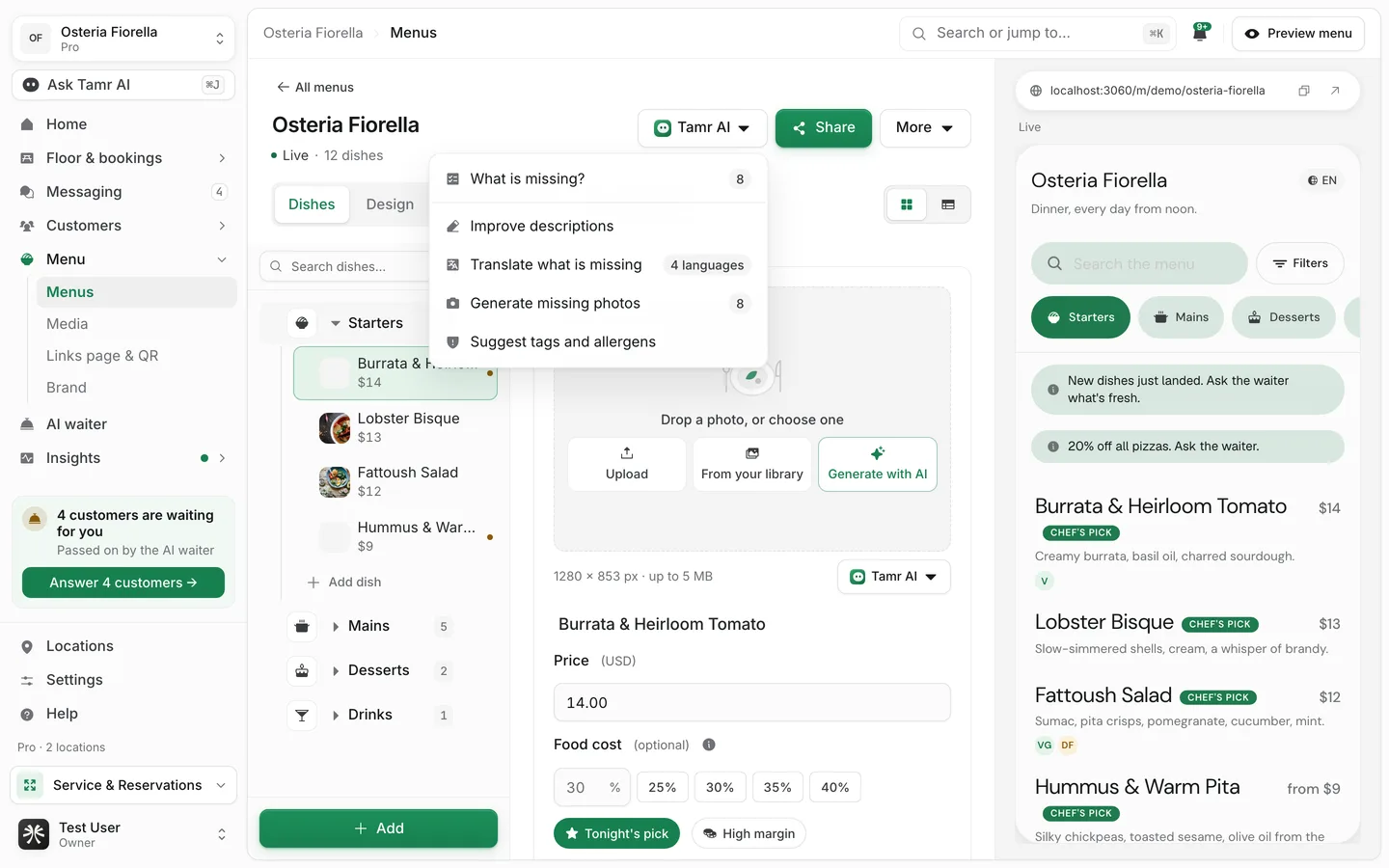
What is missing?checkWrite missing descriptionsbatchImprove descriptionsbatchTranslate what is missingProGenerate missing photosProSuggest tags and allergensbatchBatch jobs open a dialog with one proposal per dish. Tick the ones you want, then Use ticked or Add ticked. Nothing is applied until you do.
Generating photos and adding languages are part of Pro. On Free, each description or label suggestion counts toward your 5 Tamr AI questions a day; Pro allows 150. Uploading your own photos is free on every plan.
Delete a dish
Open the dish and use Delete dish at the foot of the form. Deleting is permanent and removes the dish photo with it. To take a dish off for a while, use Temporarily unavailable instead.
FAQ
Why isn't a dish showing up for customers?
Check that it is not Temporarily unavailable, that the menu is Live, and that the indicator says Saved.
Does Tamr AI change my dishes on its own?
No. Every suggestion waits in a card or a dialog until you apply it.
Do I have to fill in calories and macros?
No. Every field except the name is optional. Nutrition only shows when you set it.
Does the waiter's note show to customers?
Never. It is private guidance for the AI waiter.
Related
Last reviewed October 14, 2026