
Read your Home page
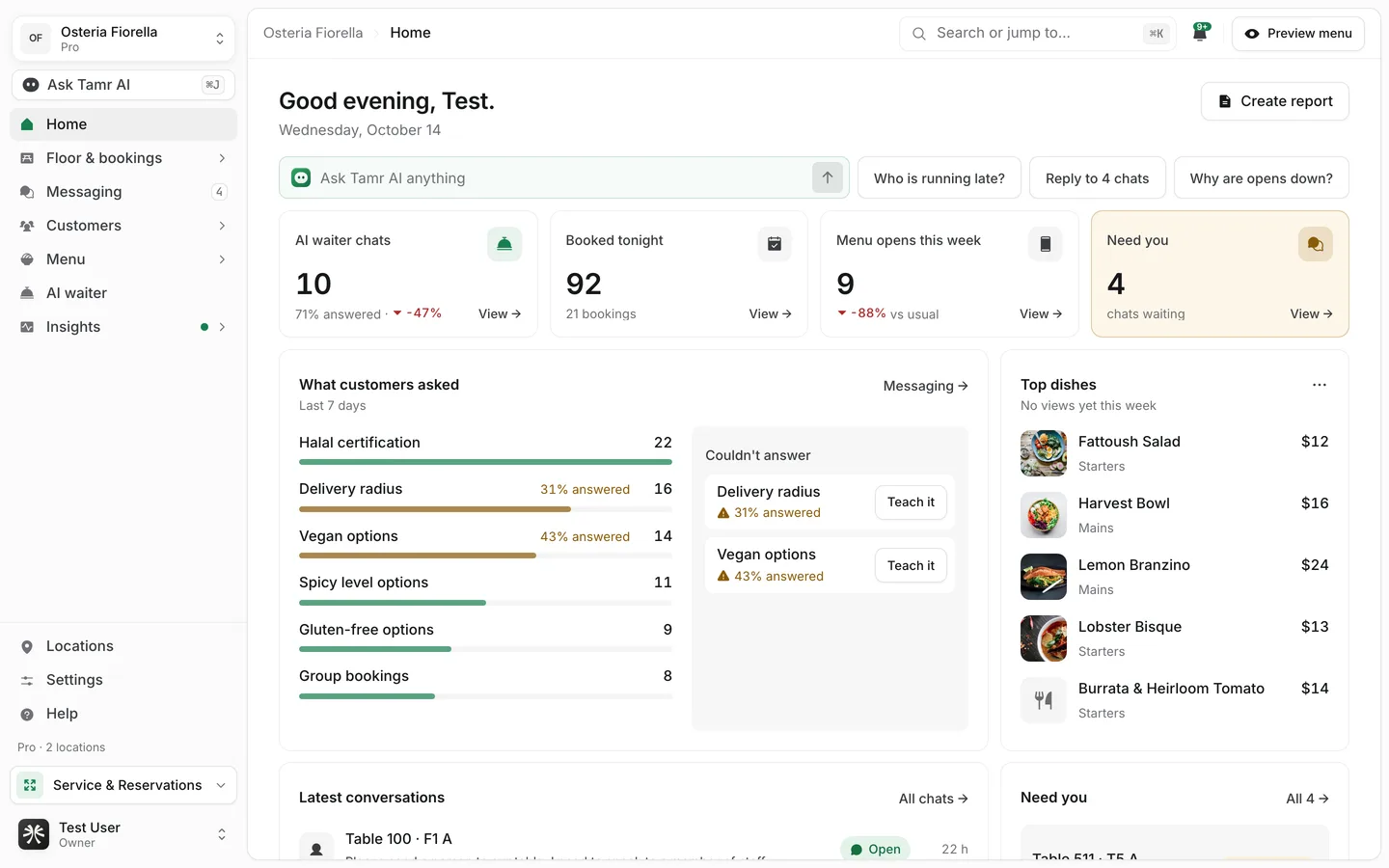
The greeting and Create report, the Ask Tamr AI field, the four stat cards, What customers asked and Couldn't answer, Top dishes, Latest conversations, Need you, the bookings chart, the floor, Do today, and the Getting started guide.
Home is the first page you see when you sign in: your day in one place, with a way into each part of tamr. Open it from Home at the top of the sidebar.
The top of the page
GreetingtodayCreate reportbuttonAsk Tamr AI anythingfieldThe stat cards
Four cards sit under the field. Each ends in View →, which opens the page behind the number.
AI waiter chatsthis weekBooked tonightpeopleMenu opens this weekthis weekNeed youwaitingWhat customers asked
The topics customers asked the AI waiter about in the last 7 days, most asked first, each with a bar and a count. A topic it answered under 60% of the time shows its answer rate in amber, such as 31% answered. Select a topic to read the chats behind it in Messaging.
Beside it, Couldn't answer lists what the AI waiter could not settle this week: weak topics first, then the latest questions it could not answer at all. Each row has Teach it, which opens the menu's AI waiter notes so you can add the answer. When there is nothing to fill, the card says Answered everything.
The topics and the Couldn't answer list are Pro. On Free the card shows how many chats you had, with Get Pro to see their topics.
Top dishes
Your most viewed dishes this week, with a photo, section and price. Use the ⋯ menu to rank by Most viewed or Asked about. On Free, and in a week with no views yet, the card shows dishes from your menu instead.
Latest conversations and Need you
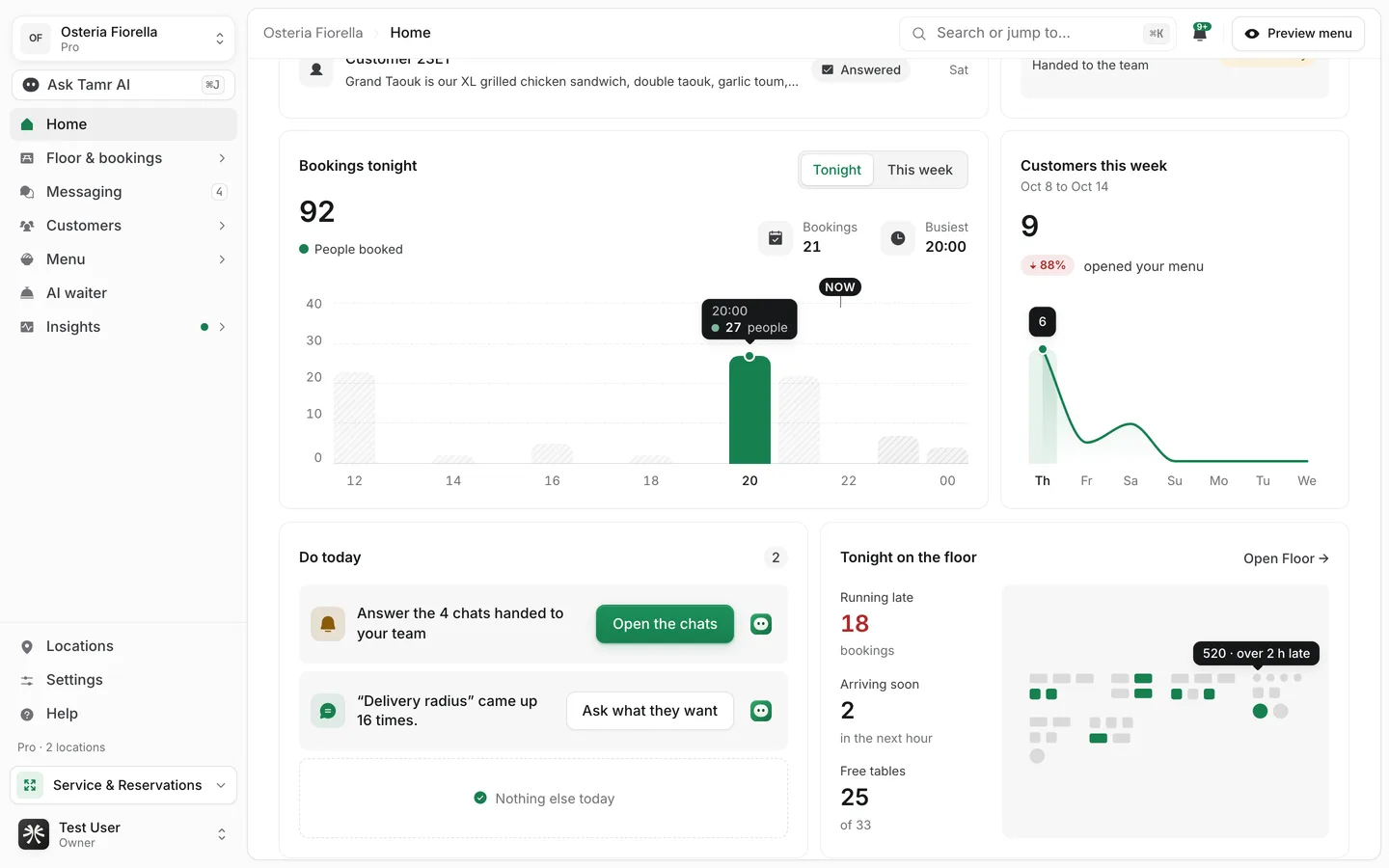
Latest conversations shows the newest chats with the AI waiter, each with its table or customer, the start of the conversation, a status and when it happened. Statuses are Open, Answered, Couldn't answer, Handed to team and Left. All chats → opens Messaging.
When chats are waiting on a person, Need you sits beside it. All → opens them in Messaging so someone can answer. When nobody is waiting, Customers this week takes its place.
Bookings, customers and the floor
Bookings tonightchartCustomers this weekchartTonight on the floorglanceDo today
Do today lists what is worth doing now, built from real signals only: chats handed to your team, a menu still in draft, locations without opening hours, a low AI waiter test score, set-up problems, and patterns in what customers asked (for example, a topic that came up 16 times).
Each row has one button that takes you where the fix happens, such as Open the chats. The Tamr AI button beside it hands the job to Ask Tamr AI (Let Tamr AI do it). The ⋯ menu has Why this, which shows the evidence behind a suggestion, and Dismiss. See all expands a long list and Show fewer folds it. When everything is handled, the card says Nothing else today.
On Free, some suggestions are held back. A Pro card at the foot of Home lists what Pro adds: Your top dishes, Menu health score, Tomorrow's busy hours and how many more ideas there are for today, with Get Pro.
Home while you set up
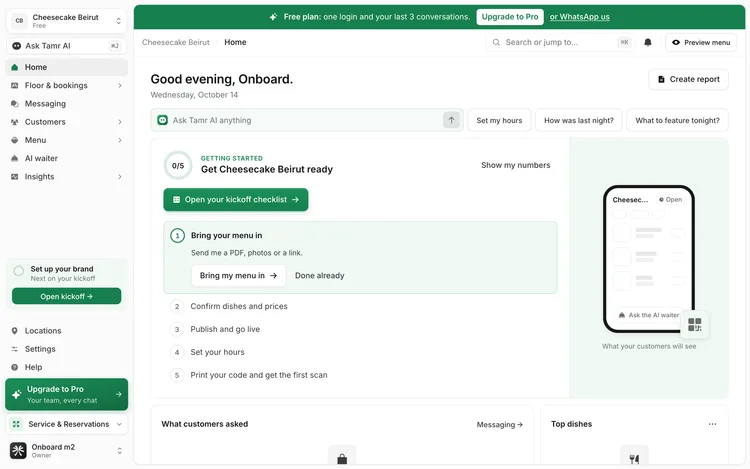
Until most of the set-up is done, Home leads with a Getting started guide instead of the stat cards.
- 1Follow the guide
The guide shows five steps: Bring your menu in, Confirm dishes and prices, Publish and go live, Set your hours and Print your code and get the first scan. Each opens the tool that does it. Done already ticks off a step you finished somewhere else.
- 2Or open Kickoff
Open your kickoff checklist opens Kickoff, which holds every step in one place. See Get your restaurant live →.
- 3Switch to your numbers
Show my numbers swaps the guide for the full Home. While set-up is unfinished, a strip at the foot of Home brings the guide back. Your choice is remembered in this browser.
FAQ
Which location do the cards show?
Bookings and the floor show your first open location. Chats, opens and topics count all your locations.
Why does Need you show 4 when Messaging shows more chats?
Need you counts only chats handed to a person that nobody has answered. Messaging lists every conversation.
What does Teach it change?
It opens the AI waiter notes on the menu customers see. Add the answer there, save, and the AI waiter uses it from the next question. See House rules →.
Related
Last reviewed October 14, 2026