
Run service with Floor & bookings
The live screens for a shift, in the dashboard for owners and full screen in Service for the host stand.
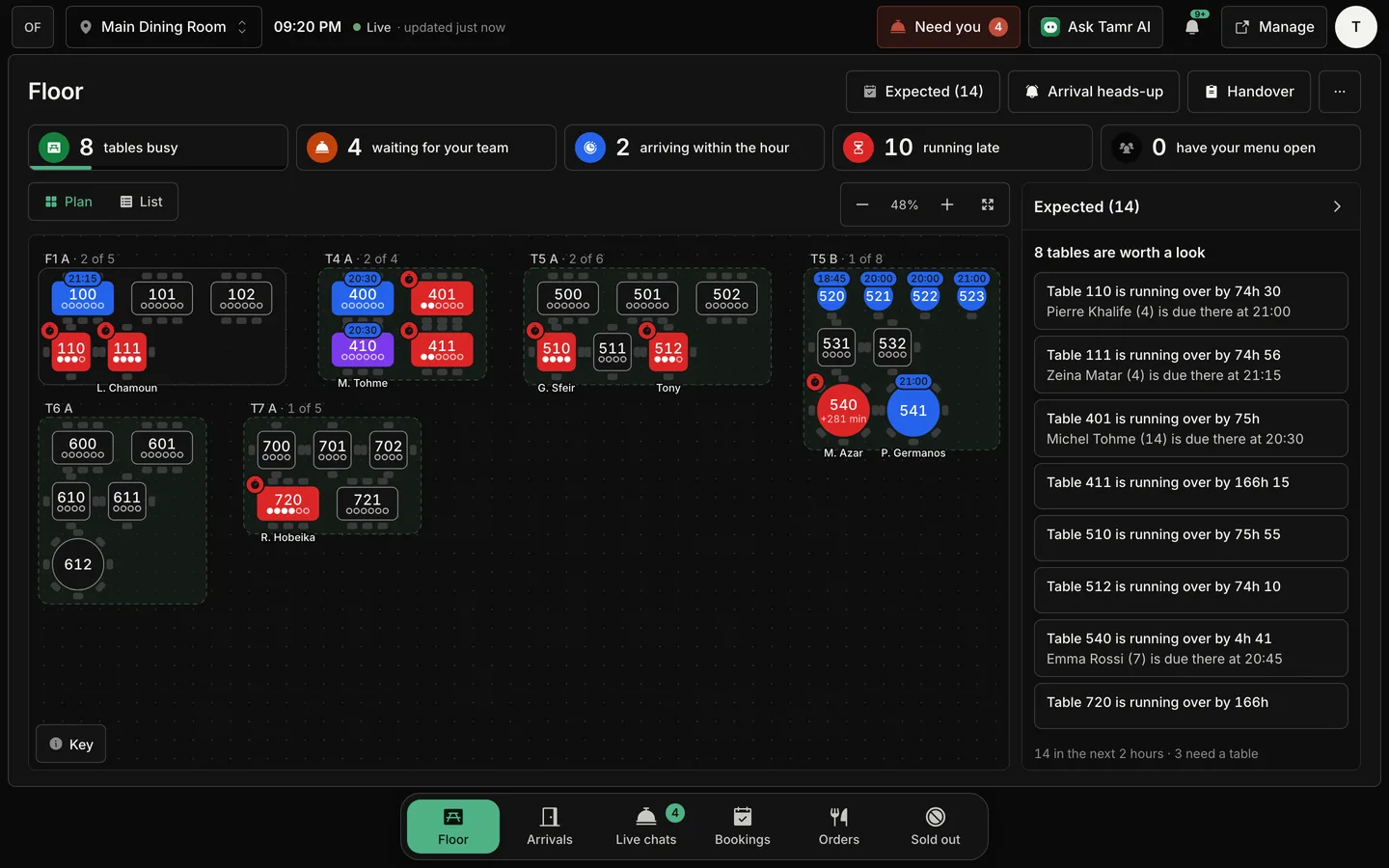
Floor & bookings is the part of tamr you use during service: who is at each table, who is booked, what has been ordered and what has run out. The same screens open in two places: inside the dashboard for owners and managers, and full screen in Service for the tablet on the host stand.
Floor, Arrivals, Live chats, Bookings, Orders and the Reservations app are part of Pro. On Free they stay in the sidebar with a small Pro mark and open to a preview with Get Pro. Sold out works on every plan.
Where the screens live
In the dashboard, open Floor & bookings in the sidebar. It holds four pages: Floor, Bookings, Orders and Sold out. Owners and managers work here without leaving the dashboard.
For the floor team there are two full-screen apps on the same data. Open them from Service & Reservations at the foot of the sidebar.
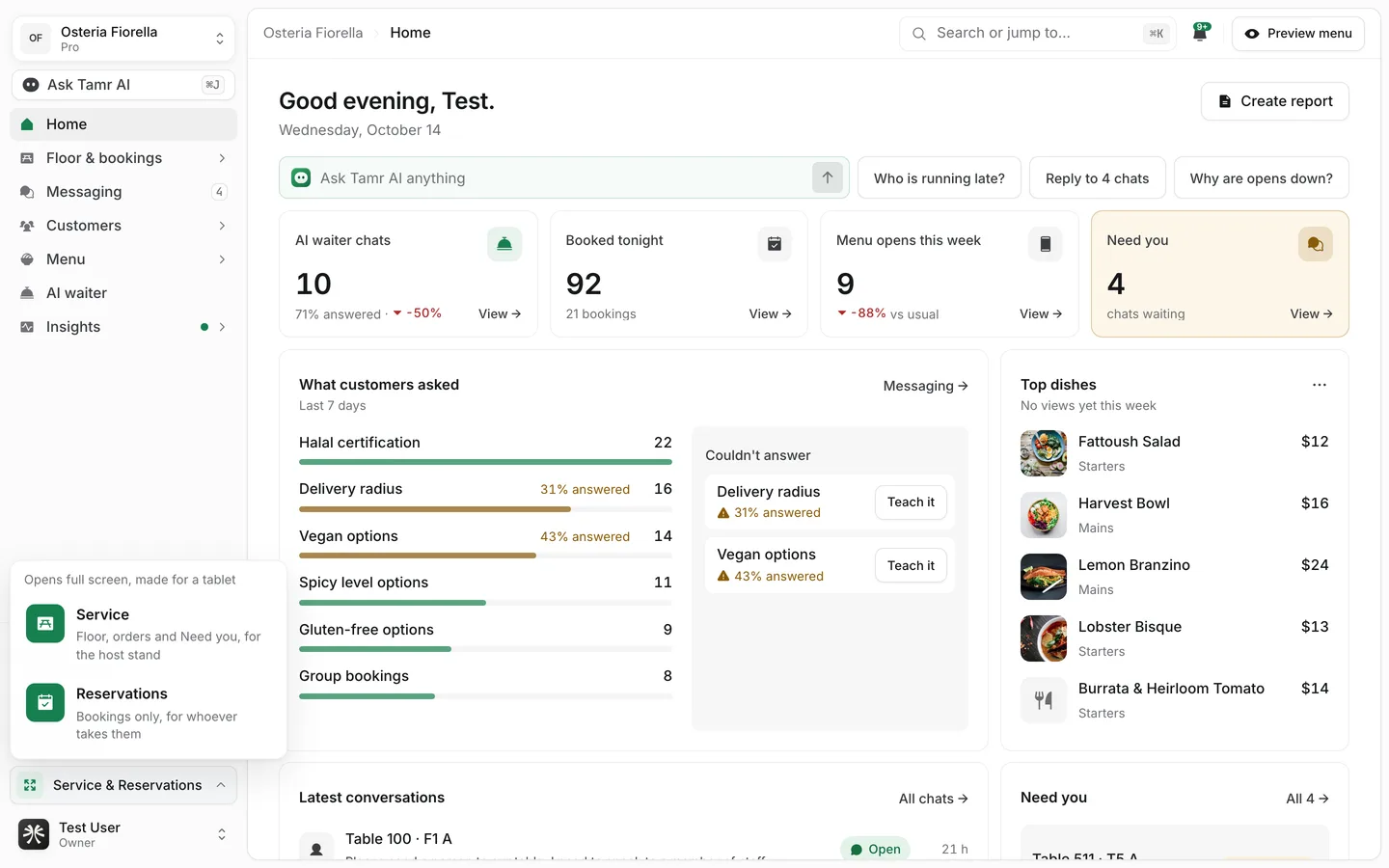
Servicetablet/app/{restaurant}/service.Reservationsbookings only/app/{restaurant}/reservations. See Use the Reservations app.Open Service on a tablet
- 1Open it
On the tablet, sign in and choose Service & Reservations → Service, or go straight to
/app/{restaurant}/service. - 2Add it to the home screen
Use your browser's Add to Home Screen. The installed app opens in Service every time, without the dashboard's sidebar.
- 3Pick the location
If you run more than one location, choose it in the top bar. The screen remembers it after a reload.
Service opens in a dark theme, sized for a finger and readable at arm's length.
What is in Service
The dock at the bottom holds six screens. The top bar shows the location, the time on the device, and Live while the screen is updating on its own.
FloordockArrivalsdockLive chatsdockBookingsdockOrdersdockSold outdock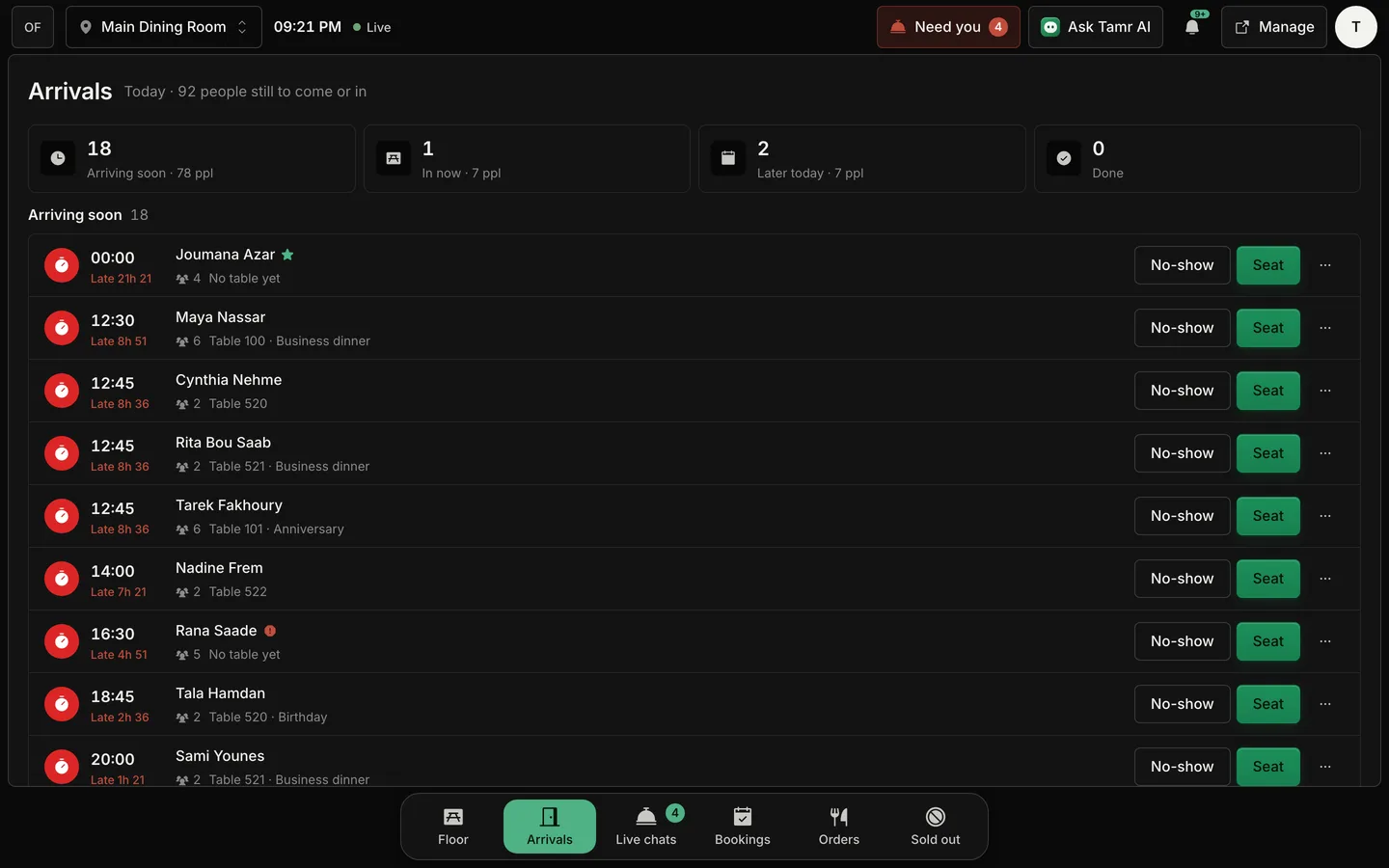
Answer the Need you queue
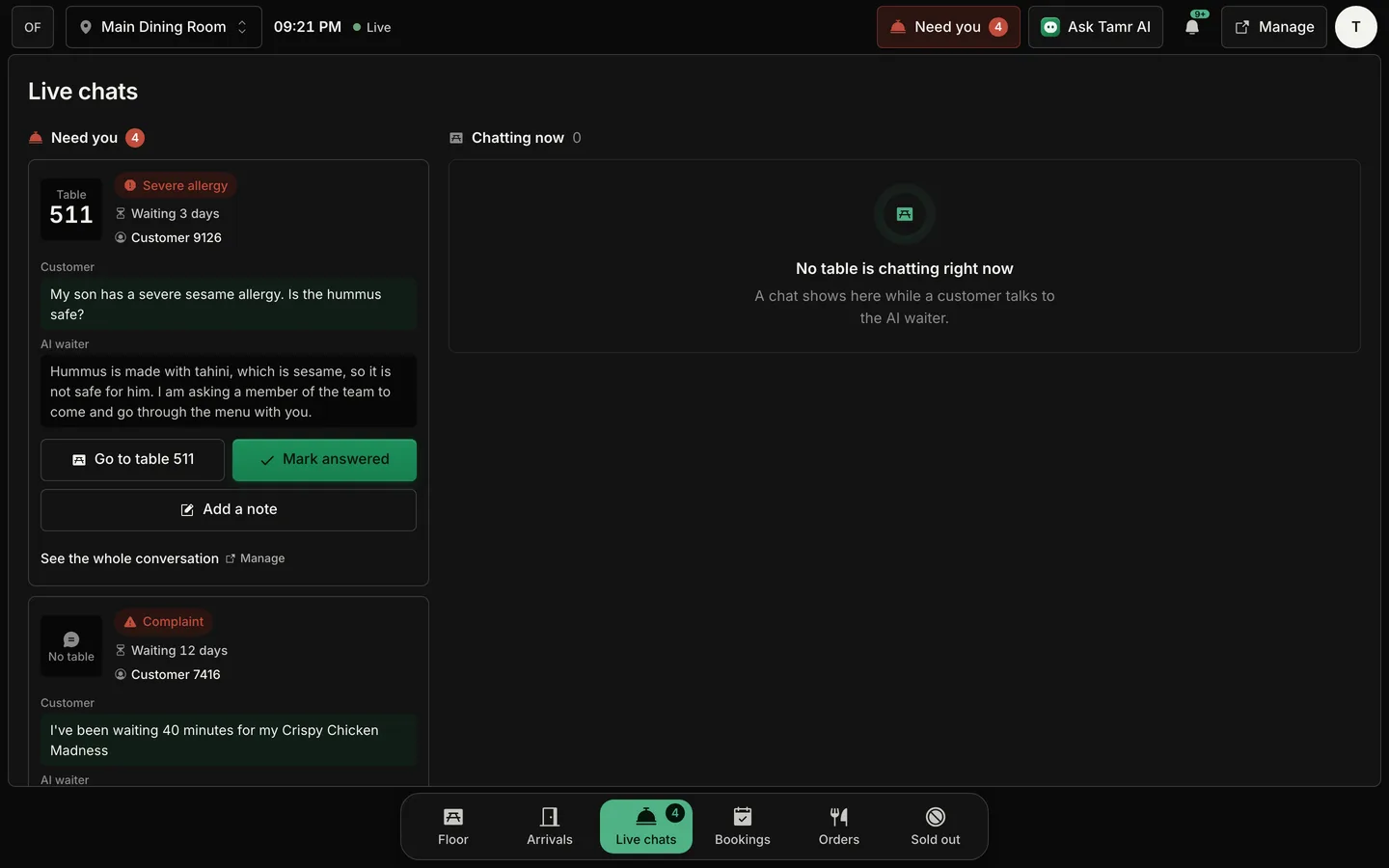
When the AI waiter cannot help a customer on its own (a severe allergy, a complaint, a request for staff), it hands the conversation to your team. Need you in the top bar shows how many are waiting. Tap it to open the queue.
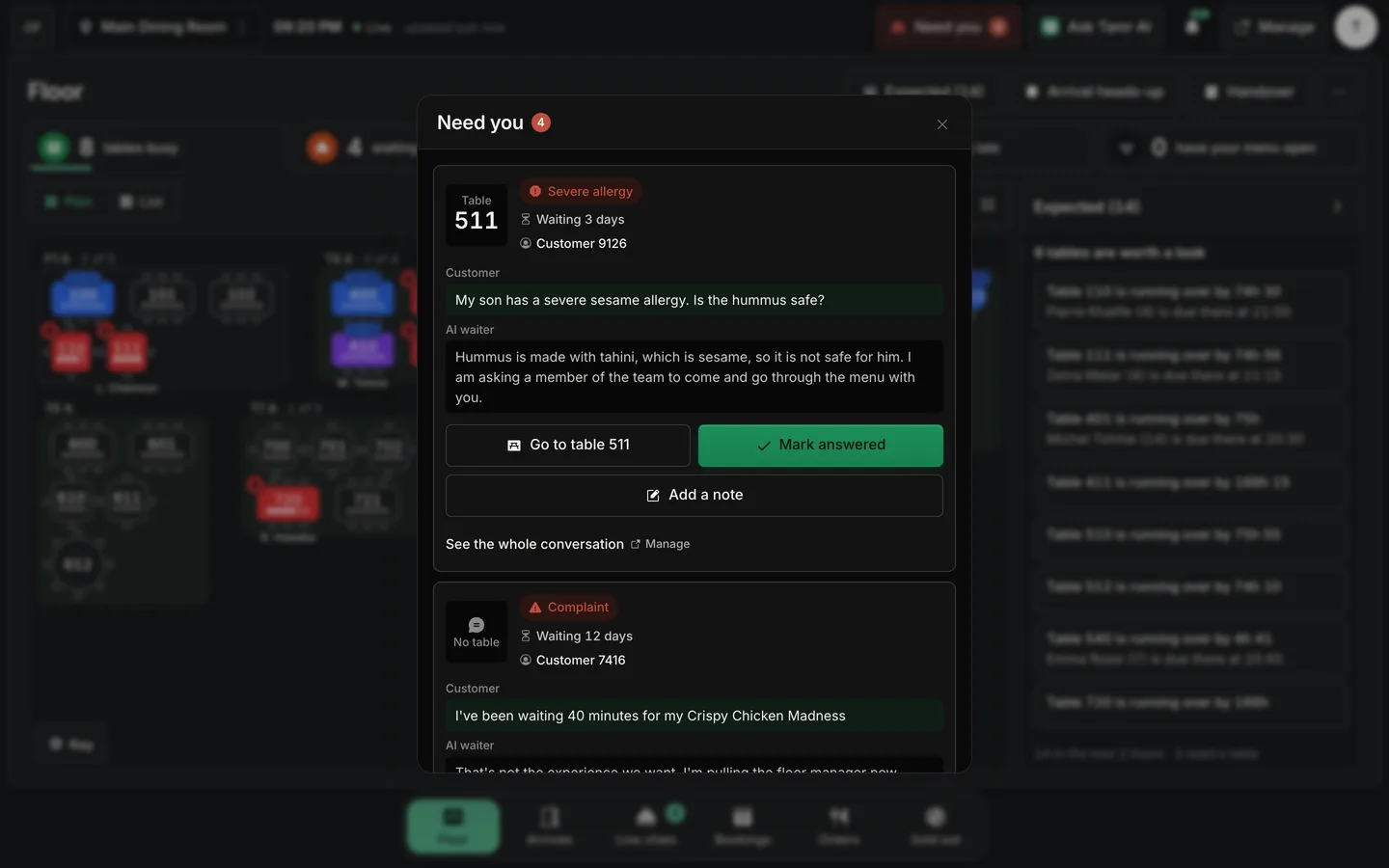
Each card shows the table in large type, the reason, how long the customer has waited, and the last thing the customer and the AI waiter each said. The queue is ordered by urgency: a severe allergy first, then a complaint, then everyone else, longest wait first within each.
Go to tableactionMark answeredactionAdd a noteactionSee the whole conversationlinkYour floor team acts on the handover. Staff do not reply inside the customer's chat.
Links that lead to Manage
Service keeps the floor team on the floor. A link that goes to a dashboard page carries a small Manage marker, so the person knows the next screen is the dashboard. People whose role does not include the dashboard never see a link that fails: they see a short line instead, such as Set up in Manage by a manager or Full chat is in Manage. Owners and admins also get a Manage button in the top bar that opens the full dashboard.
Read the colours
Every state has its own colour, an icon and a label, so nothing depends on colour alone. Tap Key on the plan to see them.
AvailabletableBooked latertable · blue outlineReserved soontable · blueSeatedtable · greenOrderedtable · violetNeeds youtable · orangeRunning overtable · redClosedtable · greyBookings use the same palette: Request amber, Confirmed blue, Late and No-show red, Seated green, Finished and Cancelled grey. Orders move from To take (orange) to In the kitchen (violet) to Served (green).
FAQ
Do owners have to use Service?
No. Floor, Bookings, Orders and Sold out are pages of the dashboard under Floor & bookings. Service is the same screens, full screen, for a shared tablet.
Can a host open the dashboard from Service?
Only if their role includes it. Owners and admins see Manage. Other roles see a short note where a dashboard link would be.
Does the screen refresh on its own?
Yes. Live in the top bar means it is updating within seconds. If the connection drops it says Reconnecting and catches up when it is back.
What does a Free restaurant see?
Floor, Bookings and Orders show a small Pro mark and open to a preview with Get Pro. Sold out works as normal.
Related
Last reviewed October 14, 2026