
Find your way around Settings
One Settings list for your restaurant, plan, team, connections and your own account, with search, centred dialogs, and admin-only pages.
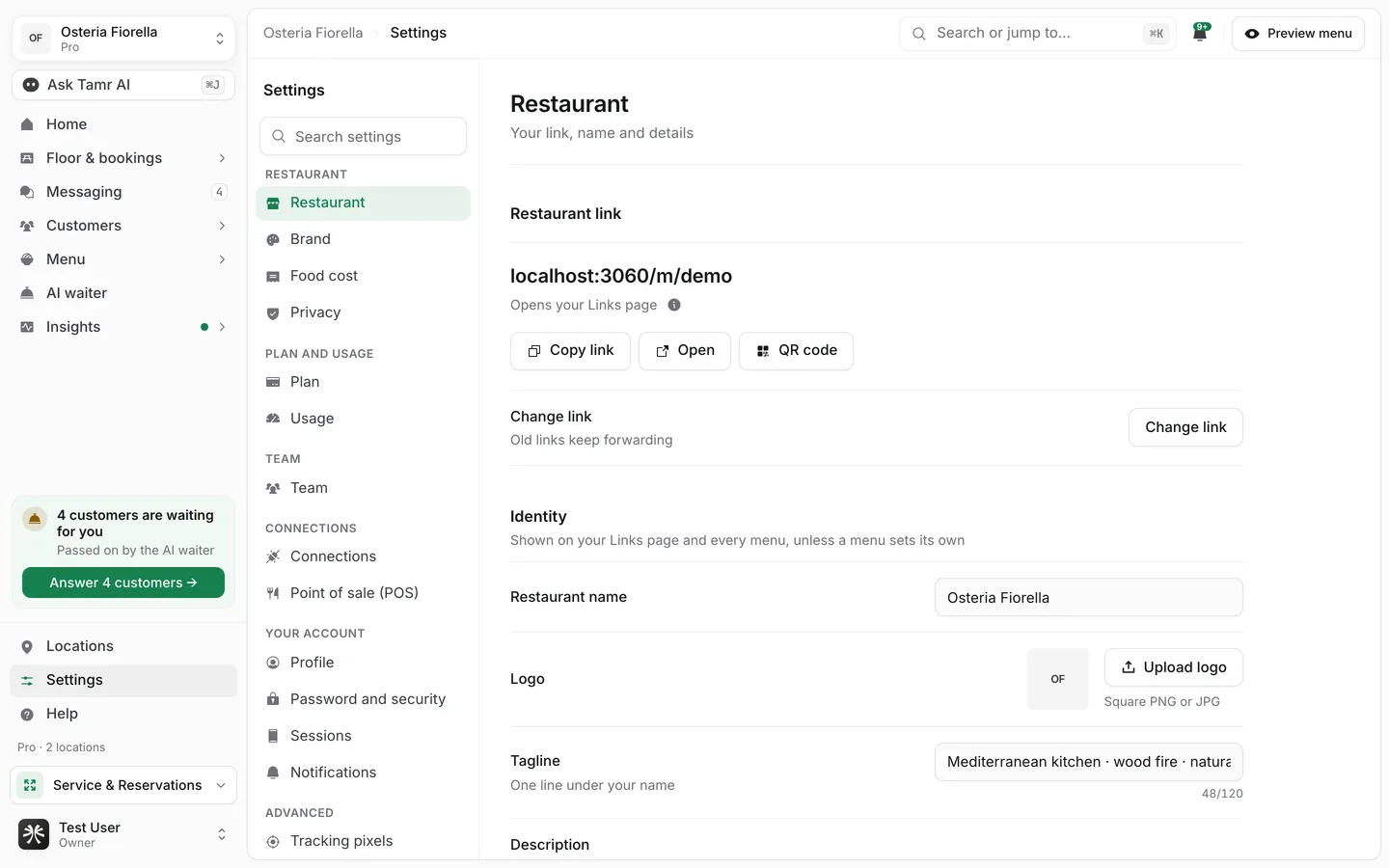
Settings at the foot of the sidebar holds everything about your restaurant and your own login in one place. The list on the left groups every page; the page you pick opens on the right.
Find a setting
Type in Search settings at the top of the list. It matches page names and the sections inside them, so "logo", "2fa" or "fair use" takes you straight to the right card. Select a result to jump to it.
Every settings page
Restaurant
RestaurantdetailsBrandopens BrandFood costcostsPrivacydataPlan and usage
PlanadminUsageadminTeam
Teampeople · rolesConnections
ConnectionsadminPoint of sale (POS)admin · proYour account
These pages are about you, not the restaurant, and follow you to every restaurant you belong to.
ProfileyouPassword and securityyouSessionsyouNotificationsyouAdvanced
Tracking pixelsadminAPI keysadminAudit logadminTransfer or deleteadminUse Connections
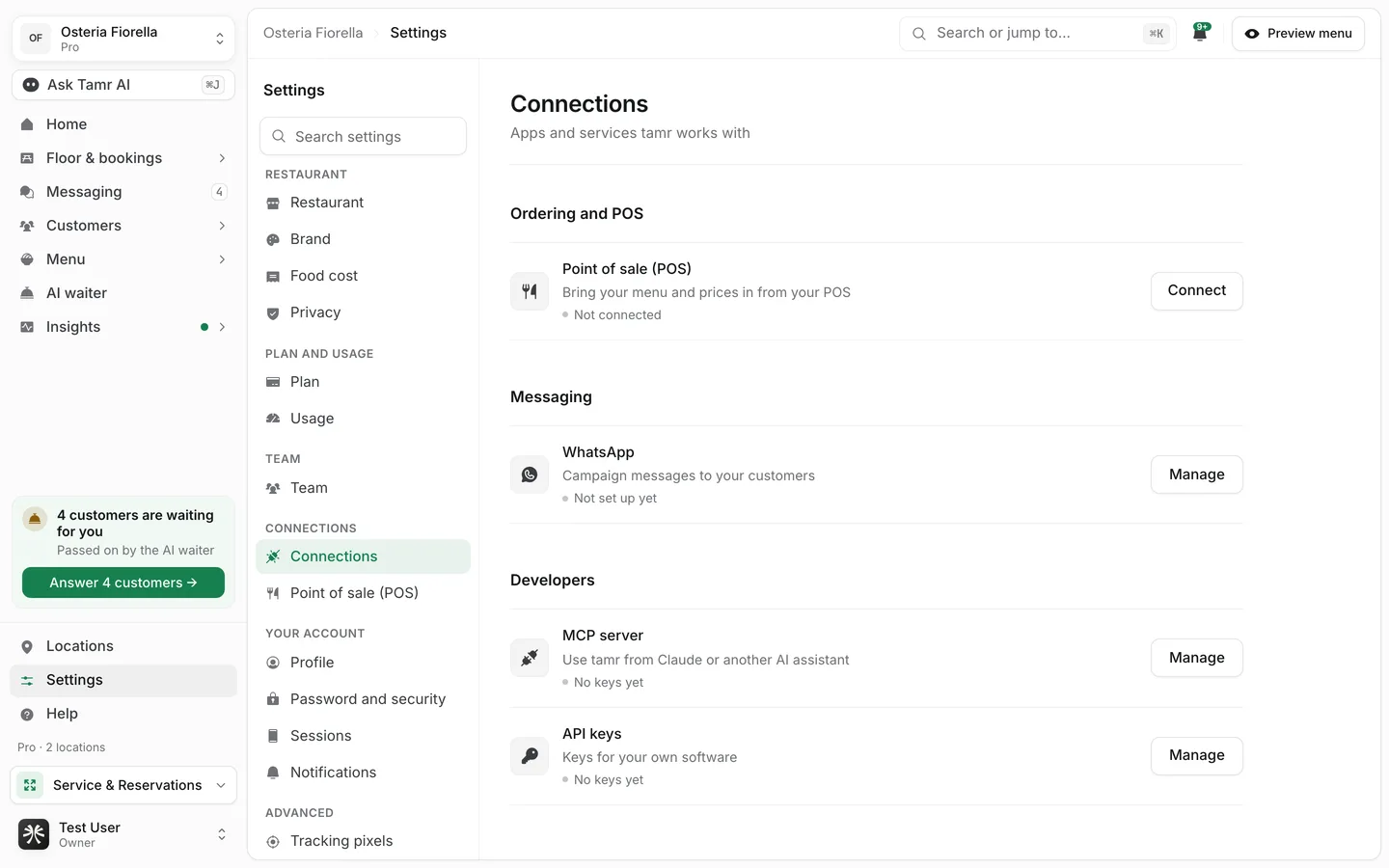
Each row shows its status under the name, for example Not connected, Not set up yet, Connected as Foodics · synced 2 hours ago or 2 active keys.
| Row | Button | What opens |
|---|---|---|
| Point of sale (POS) | Connect or Manage | The Point of sale (POS) page |
| Manage | A dialog with the status, who messages are sent from, and Open campaigns | |
| MCP server | Manage | A dialog with the server address, your keys and the client config to copy |
| API keys | Manage | The API keys page |
POS sync, WhatsApp campaigns and MCP access are Pro features. See integrations →.
Dialogs and saving
Short tasks and details in Settings, such as Invite someone or a connection's details, open in a centred dialog on a computer or tablet and as a full screen on a phone. The page behind stays where it was. Close a dialog with the × or Esc.
Pages with a form, such as Restaurant and Privacy, show a bar reading Unsaved changes with Discard and Save as soon as you change something. Nothing is saved until you select Save.
Who sees what
Owners and admins see every page. Other roles do not see Plan, Usage, Connections, Point of sale (POS), Tracking pixels, API keys, Audit log or Transfer or delete, and see restaurant pages such as Restaurant and Privacy read-only. Everyone sees the Your account pages for their own login.
FAQ
Where did Members and Roles go?
Both are on one page now: Settings → Team.
Where are the logo and colours?
On the Brand page under Menu in the sidebar. Brand in Settings opens the same page.
Where are my locations?
Under Locations at the foot of the sidebar, next to Settings.
Why can't I change anything on Restaurant?
Restaurant settings can only be changed by owners and admins. Ask one of them, or ask for a different role.
Related
Last reviewed October 14, 2026