
Take and manage bookings
The Bookings page, the New booking dialog, the table picker, customer matching and booking settings.
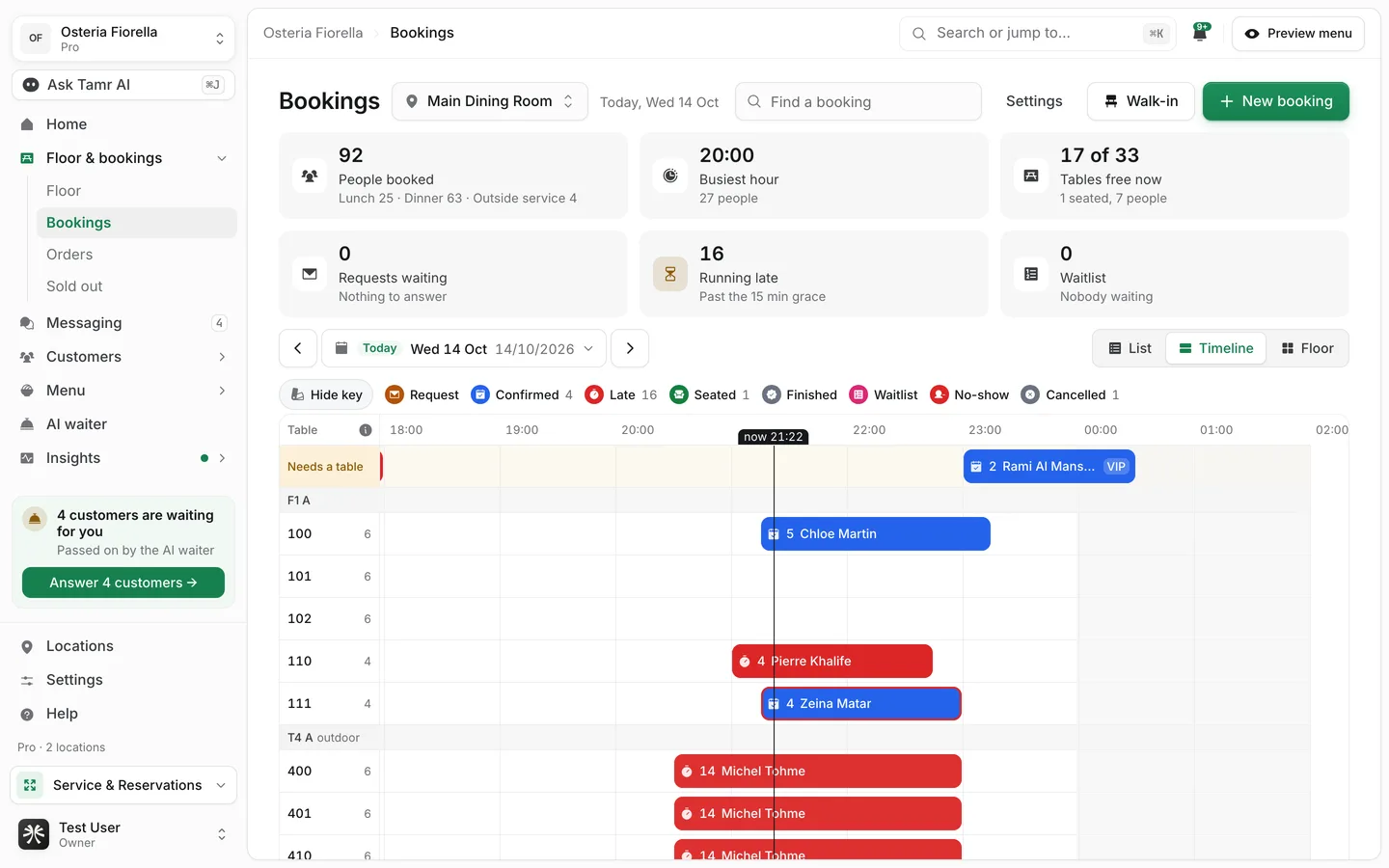
Bookings is your book for each location: every booking for the day, who is late, which tables are free, and the settings for bookings your customers make online and through the AI waiter. Open it from Floor & bookings → Bookings.
Bookings is part of Pro. On Free, the page opens to a preview with Get Pro, and customers cannot book a table through tamr.
Read the day
The tiles at the top sum up the day: People booked (split by service), Busiest hour, Tables free now, Requests waiting and Running late.
LocationswitcherFind a bookingsearchListviewTimelineviewFloorviewKeylegendMove between days
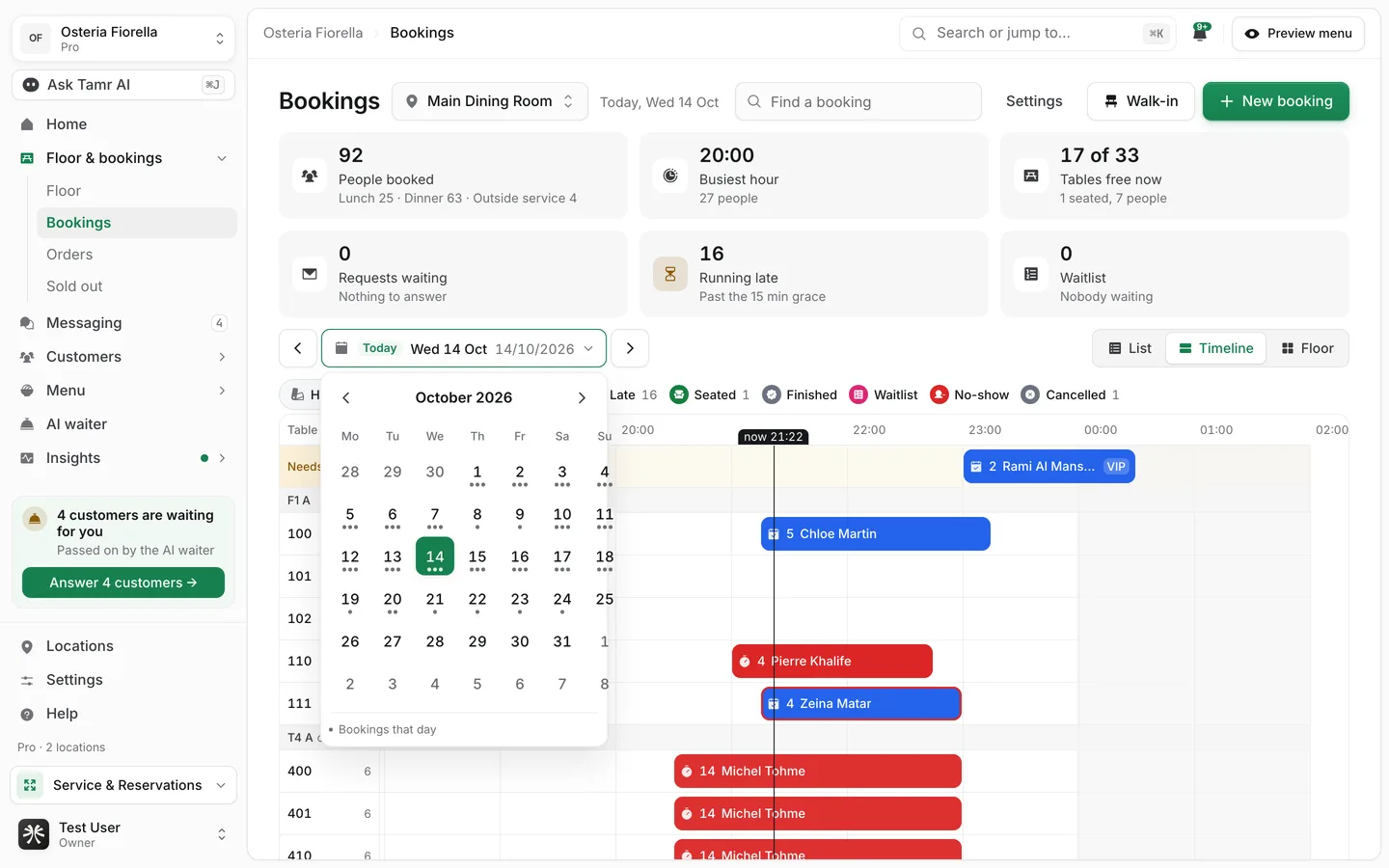
Use the arrows either side of the date to go a day back or forward. Tap the date itself to open a calendar: a dot under a day means it has bookings, so you can see busy days at a glance.
Add a booking
- 1Open New booking
Press New booking. It opens as a centred dialog for the location on screen.
- 2Choose the party size
Tap 1 to 6. For a larger party tap 7+ and set the number with the stepper.
- 3Choose the day and time
Pick a day from the strip (Today, Tomorrow, then the week) or Pick another day. Free times show grouped by service, with how long the table is kept (for example Table kept 1h 45). Use Show all times for the rest, or Type a time for one off the grid.
- 4Check the table
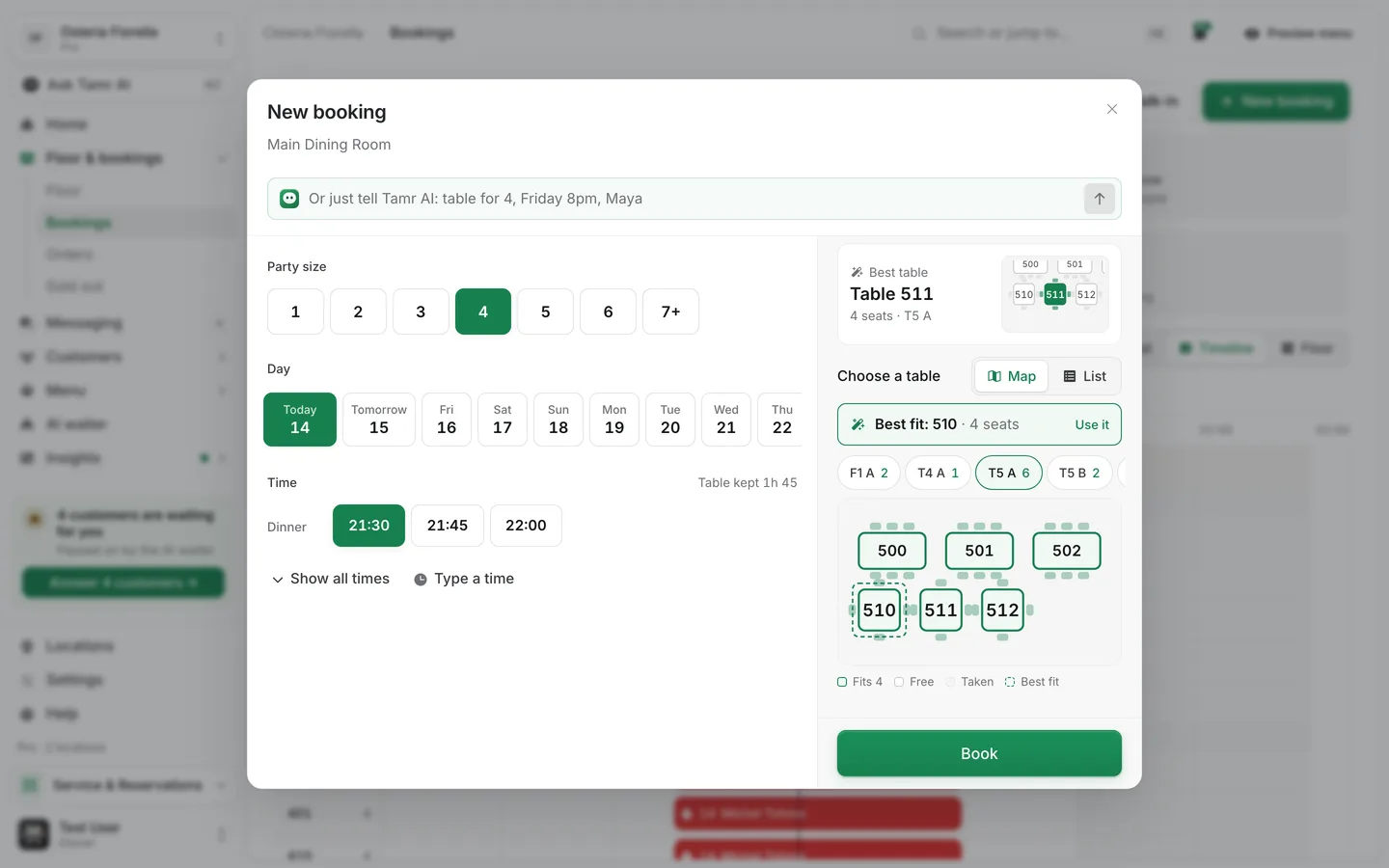
tamr picks the Best table for the party and shows it in the summary. Press Change to choose another one on the floor map.
- 5Add who it is for
Type the Name and Phone. Customers you already know are suggested as you type (see below). More options holds the email, occasion, customer request, a private staff note and seating preference.
- 6Book
Press Book. If the time is full, the button offers Book anyway so you can still take it.
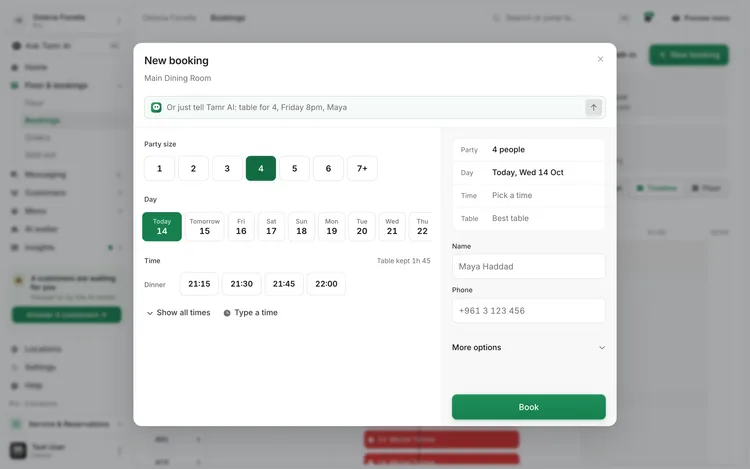
The field at the top of the dialog takes a sentence: "table for 4, Friday 8pm, Maya". Tamr AI fills in the form, and you check it before you book.
Choose a table on the map
Press Change next to the table in the summary. The picker opens beside the form.
Best tablesuggestionBest fitsuggestionZonestabsMap / ListviewKeylegendMatch bookings to customers you know
As you type a name, tamr lists customers it already knows under the field, for example "12 visits · last 2 Oct". Spelling is forgiven: a typo, a missing accent or the name in Arabic or Latin letters still finds the same person. Pick one to fill the name and phone and link the booking to their profile. Keep typing to ignore the suggestions.
A booking saved with a name only can later show Same person? when one customer on file clearly fits. Press Merge to link it, or Not them to dismiss it. Either can be undone from the toast. tamr never merges on a name by itself; a phone number added later settles it without asking.
Open a booking
Tap a booking to open it. It opens large and centred on a tablet or laptop, and full screen on a phone. The status, time, party and table sit at the top, then the actions, the customer and their history, notes and what has happened so far. From the actions you can seat, move to another table, edit, mark a no-show, cancel, or Show on floor.
When a service is filling up
As a service fills, a banner says how full it is, for example "Dinner is 92% full", with seats left and the last free time. Press What to do to choose:
Stop online bookingsactionTake online bookings againactionKeep goingactionSet how bookings work
Press Settings on the Bookings page, or Settings on the Bookings card of a location. Settings are per location: pick it at the top right. A preview on the right shows what a customer sees as you change things.
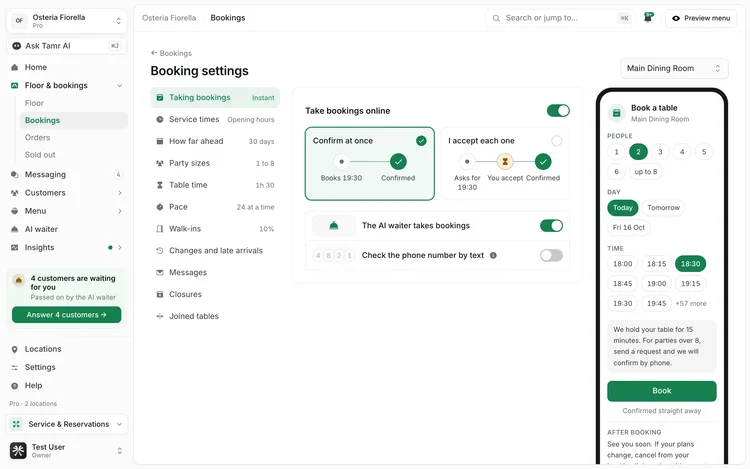
Taking bookingssectionService timessectionHow far aheadsectionParty sizessectionTable timesectionPacesectionWalk-inssectionChanges and late arrivalssectionMessagessectionClosuressectionJoined tablessectionFAQ
Why does Bookings say it needs tables?
Bookings are placed on tables, so a location needs a floor plan first. See Draw your floor plan.
Can I book a time that shows as full?
Yes. Staff can always press Book anyway. The limits in settings apply to what customers can book online.
Does tamr merge two customers with the same name?
No. It only asks Same person?, and someone on your team decides.
Where do bookings from the AI waiter go?
Into the same book, with The AI waiter takes bookings on. With I accept each one, they wait under Requests waiting until you accept them.
Related
Last reviewed October 14, 2026