Use the Reservations app
The book and nothing else, at /app/{restaurant}/reservations, installable on a phone.
The Reservations app is the book and nothing else: no sidebar, no floor dock, no other screen. It is made for the person who answers the phone and takes bookings, and it works on a phone as well as a tablet.
The Reservations app is part of Bookings, which is a Pro feature. On Free it opens to the Bookings preview with Get Pro.
Open it
- 1From the dashboard
Choose Service & Reservations at the foot of the sidebar → Reservations.
- 2From its own address
Go to
/app/{restaurant}/reservationson the phone or tablet. Bookmark it, or use your browser's Add to Home Screen to install it as an app.
Someone whose only role is Reservations lands here straight after signing in.
Find your way around
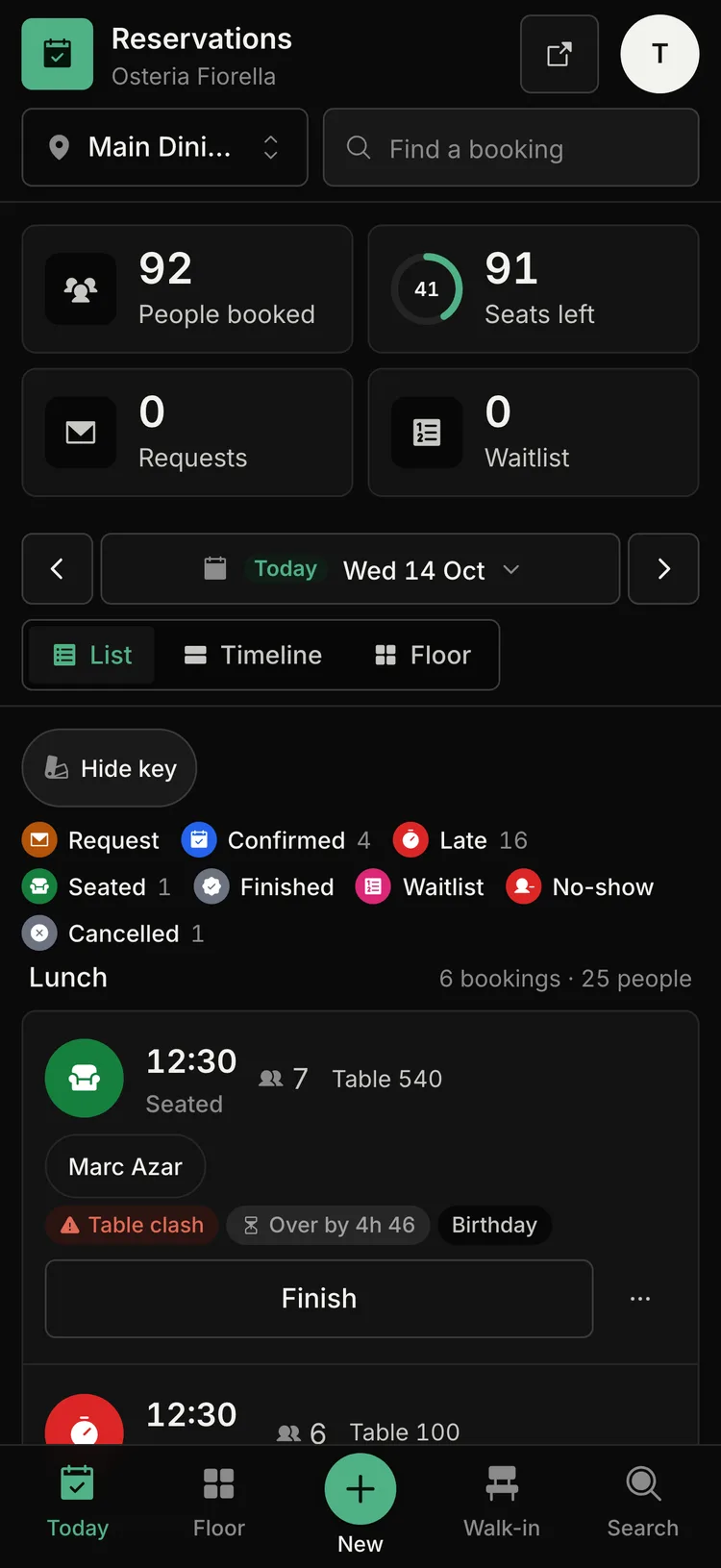
On a phone, a tab bar sits at the bottom. On a tablet and up, the app's top bar carries the same things.
TodaytabFloortabNewtabWalk-intabSearchtabTwo gestures make it feel like an app on a phone:
- Swipe left or right to move between days.
- Pull down at the top of the list to refresh. The app says Pull to refresh, then Let go to refresh.
The tiles at the top show People booked, Seats left and Requests for the day. A booking card shows the time, party, table and status, with the next action as a button (for example Seat or Finish).
Give someone the Reservations role
Reservations is a ready-made role: "Takes bookings, sees only the book". It holds one permission, Take, seat and cancel bookings, and nothing else on the floor or in the dashboard.
- 1Create the role
Go to Settings → Roles, press New role and start from the Reservations template. Save it.
- 2Give it to a team member
In Settings → Members, invite the person or change their role to Reservations.
A member with a read-only role sees the book but gets no New or Walk-in tab. Team members beyond the owner are part of Pro.
FAQ
Is the Reservations app different from Bookings in the dashboard?
It is the same book on the same data, in a shell made for one job. Anything booked in one shows in the other within seconds.
Can an owner open the dashboard from it?
Yes. Owners and admins see a button that opens the full dashboard. Someone with the Reservations role does not.
Does it send push notifications?
No. Keep the app open, or check the dashboard bell.
Related
Last reviewed October 14, 2026