
Run a campaign
The Campaigns list, the New campaign builder step by step, audiences, menu changes, the popup, the phone preview, staff instructions, results, and what really sends today.
Campaigns bring customers in and sell more. A campaign can change your menu for a few days, show a popup when the menu opens, and give you a WhatsApp message to send. You see it on your menu before anything goes live. Open it from Customers → Campaigns.
Campaigns are a Pro feature. On Free the page opens to a preview with Get Pro, and the builder's last button reads Get Pro to publish.
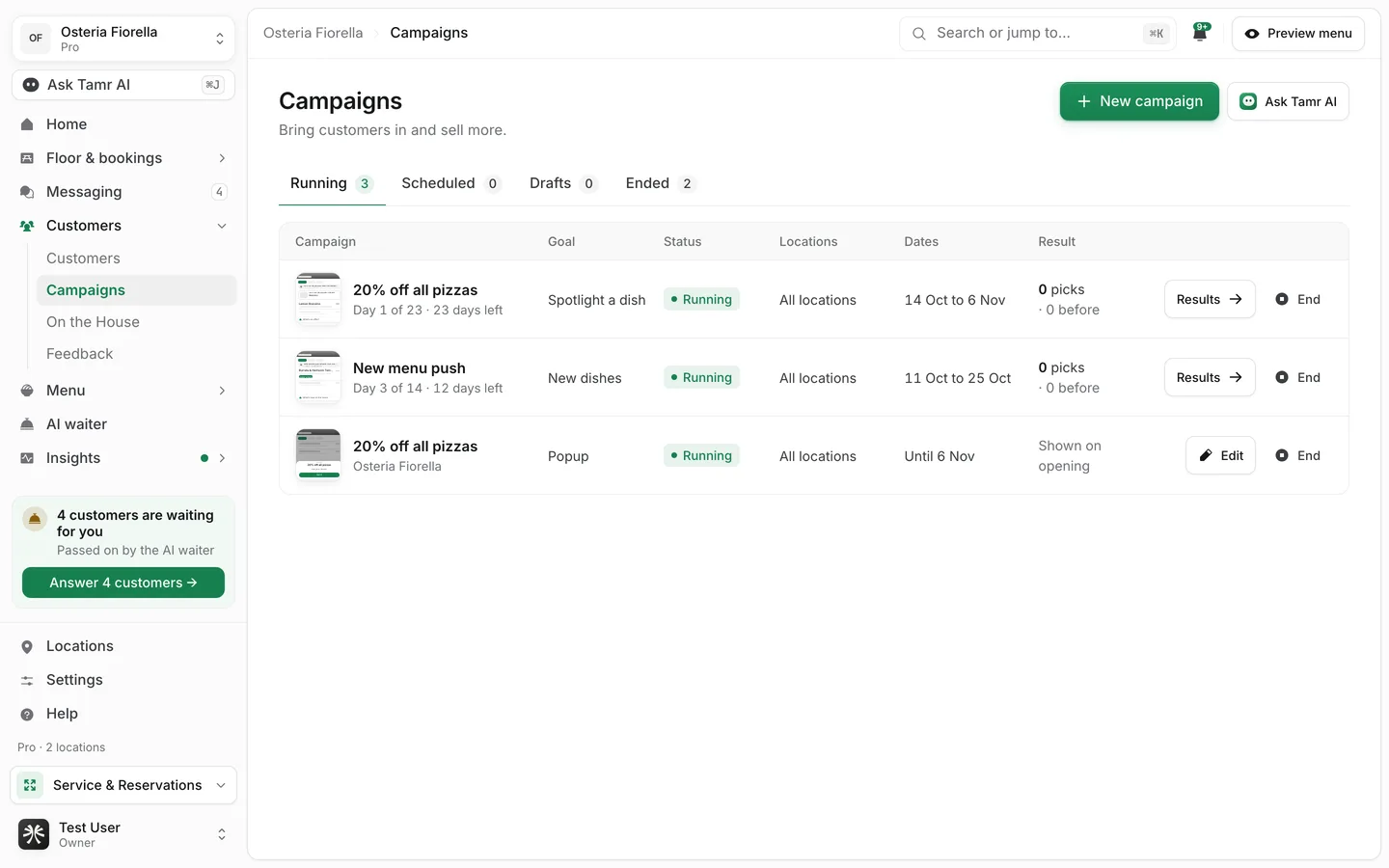
Read the Campaigns list
RunningtabScheduledtabDraftstabEndedtabThe table shows Campaign, Goal, Status, Locations, Dates and Result. For a menu campaign the result counts picks: the times customers tapped one of its dishes, against the same number of days before it started. Results opens the full numbers. End stops it: End and restore takes the campaign's changes off your menu, while changes you made yourself stay.
Create a campaign
Select New campaign. The builder is a page of its own, with Back and Next at the bottom. Your progress is kept as a draft in this browser.
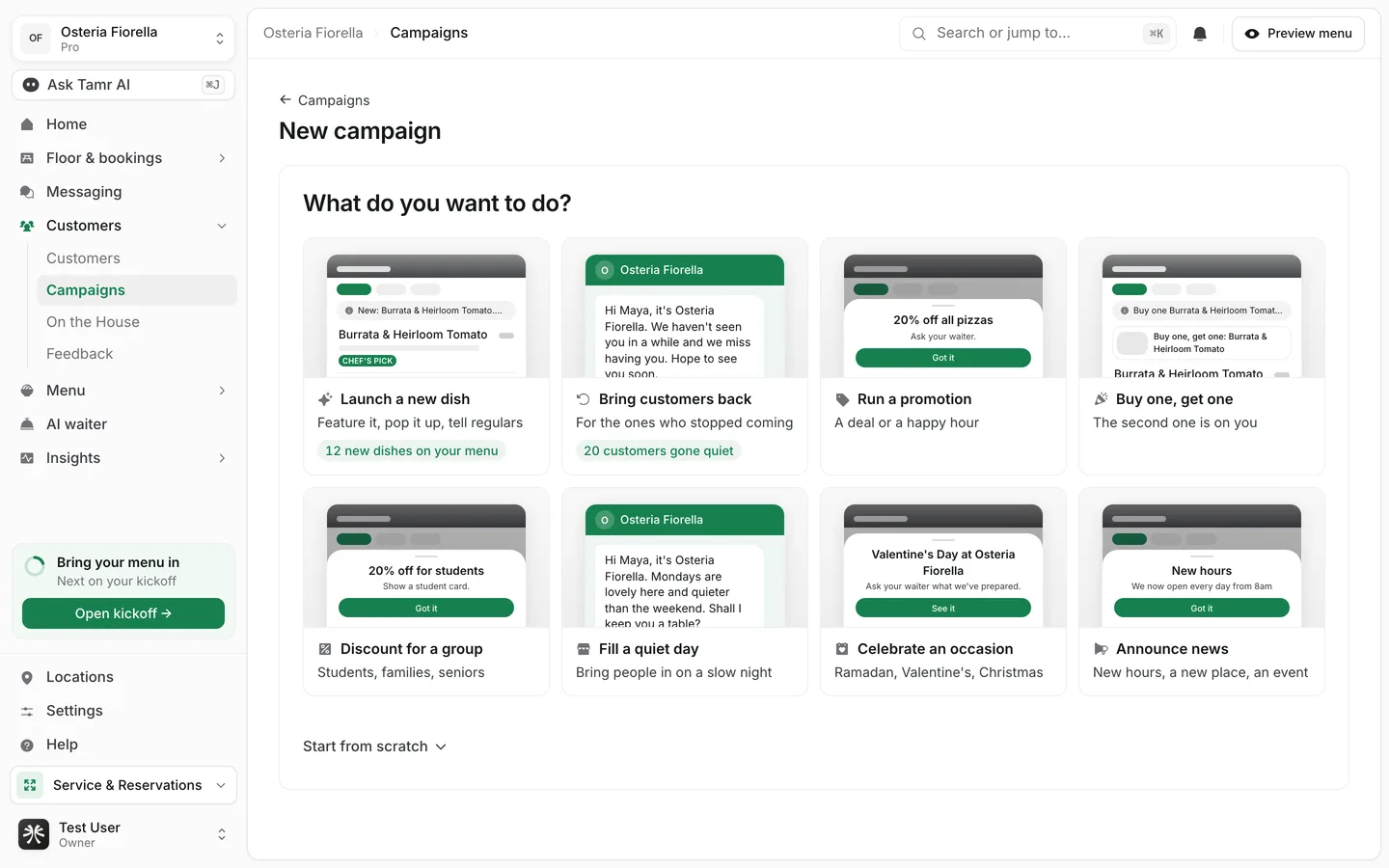
- 1Pick a goal
Under What do you want to do? pick one: Launch a new dish, Run a promotion, Buy one, get one, Discount for a group (students, families, seniors or groups of 6+), Fill a quiet day, Bring customers back, Celebrate an occasion or Announce news.
- 2Add the details
Tell us a little more: the offer, which dishes, which day, which occasion, who it is for, and Only at certain hours if it is a happy hour.
- 3Choose how customers hear about it
How customers hear about it has three cards, each with a switch: On your menu, Popup and WhatsApp message. Keep at least one on. Set how long it runs here: 1 day, 3 days, A week, 2 weeks, A month, or any number of days up to 60. It always starts today.
- 4Choose where it runs
Under Where does it run? pick Locations (or All locations) and Menus. Messages go only to customers seen at those locations, and specials show only there.
- 5Review and publish
This is how customers will see it shows your menu on a phone. Check it, then select Publish.
Start from an idea or from scratch
Under the goals, Start from scratch offers Send a message, Show a popup and Feature dishes. Each opens the idea library for that kind, which you can search with Search ideas. Ideas are grouped as Fill quiet days, Bring customers back, Launch something new, Sell more of a dish, Celebrate a date and Say thanks, for example Happy hour, We miss you, Birthday message or Ramadan iftar menu. For Feature dishes you can also tell Tamr AI what you want to sell more of and select Write the plan.
Change your menu for the campaign
The On your menu card lists the changes that go live with the campaign and come off when it ends. The kinds of change are:
A notice at the topmenuChef's pick badgemenuFirst in its sectionmenuIn your Offers rowmenuSuggested more oftenmenuThe AI waiter recommends itchatThe AI waiter mentions itchatA button in the chatchatYour menu prices do not change. When the offer is money off, the review step adds a Staff instructions card: your team takes the offer off at payment. Use Copy for your team or Share on WhatsApp to pass it on.
Add a popup
The Popup card takes a Headline and a Line under it (or Write it for me), and a Photo: upload one with Add a photo, or pick from Or one of your dishes. Popups with a photo get more taps. A menu shows one popup at a time; publishing a new one asks to replace the one you have.
Preview it on the phone
On the review step, Show on the phone switches the preview between Menu changes, Popup and Chat. Only the parts your campaign uses appear. On Menu changes, Before and After show your menu without and with the campaign. If you picked several menus, the preview shows one and the same changes go on the others.
Send the WhatsApp message
When WhatsApp message is on, pick Who gets it and write The message (up to 700 characters).
Birthday coming upaudienceGone quietaudienceRegularsaudienceVIPsaudienceNew this monthaudienceCame in this weekaudienceBirthday this monthaudienceEveryoneaudienceEach audience shows how many customers it holds; See the list opens them on the Customers page. You can also send to The customers you ticked on the Customers page, or to a list you saved there.
Sending to a whole list at once needs bulk sending on WhatsApp, which is not set up for restaurants yet, so Send to all at once is greyed out. Use Send one by one: each customer has an Open WhatsApp button that opens your own WhatsApp with the message filled in, and tamr keeps count of who is done. If you would rather not message people, Show these words as a popup on your menu instead turns the message into a popup.
See how a campaign did
Select Results on a campaign. You see Picks of its dishes, Times its dishes were seen, Menu opens and Picks on the whole menu, each against the same number of days before, a day-by-day chart, and each featured dish before and during. The first day's numbers come in the next day. Run it again starts a copy; End stops it.
On the Free plan
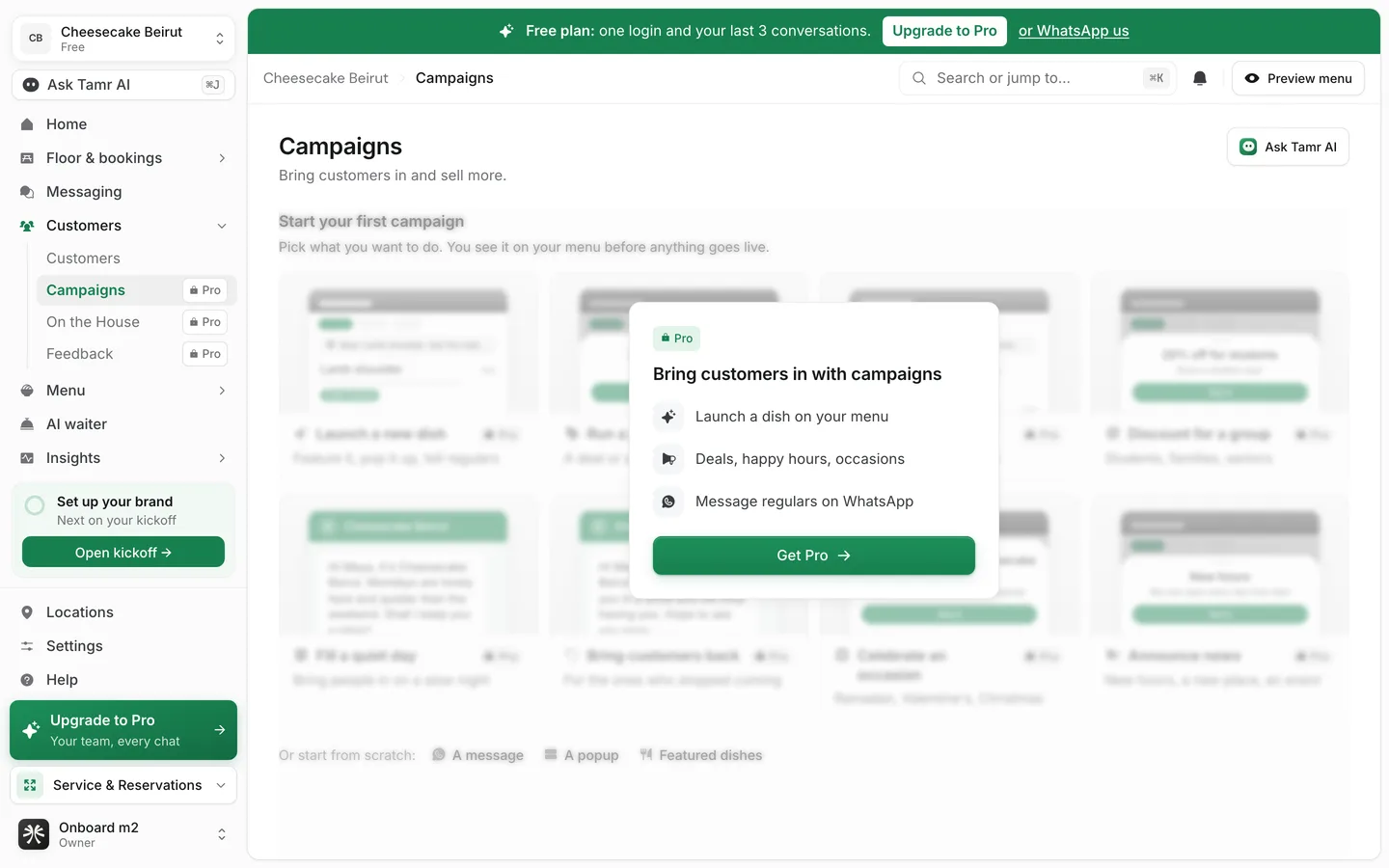
Get Pro asks the tamr team to call you about upgrading. If something you started is still running, the page stays open so you can end it.
FAQ
Do my menu prices change during a promotion?
No. Prices stay as they are. The Staff instructions card tells your team how to apply the offer at payment.
What happens to the menu when a campaign ends?
The campaign's changes come off by themselves. Ending early with End and restore does the same. Changes you made yourself stay.
Can I schedule a campaign to start later?
Campaigns built in the builder start today and run for the number of days you set. The Scheduled tab shows popups that were set to start on a later date.
Can tamr send SMS?
No. Messages go over WhatsApp only.
Related
Last reviewed October 14, 2026