
Set up your brand
The Brand page, what each setting changes, what is free, and how menus inherit it.
The Brand page holds your restaurant's logo, colours, fonts and photo style. Set them once and every menu and your Links page wear them, unless you customise one of them. It is under Menu → Brand in the sidebar, and Settings → Brand opens the same page.
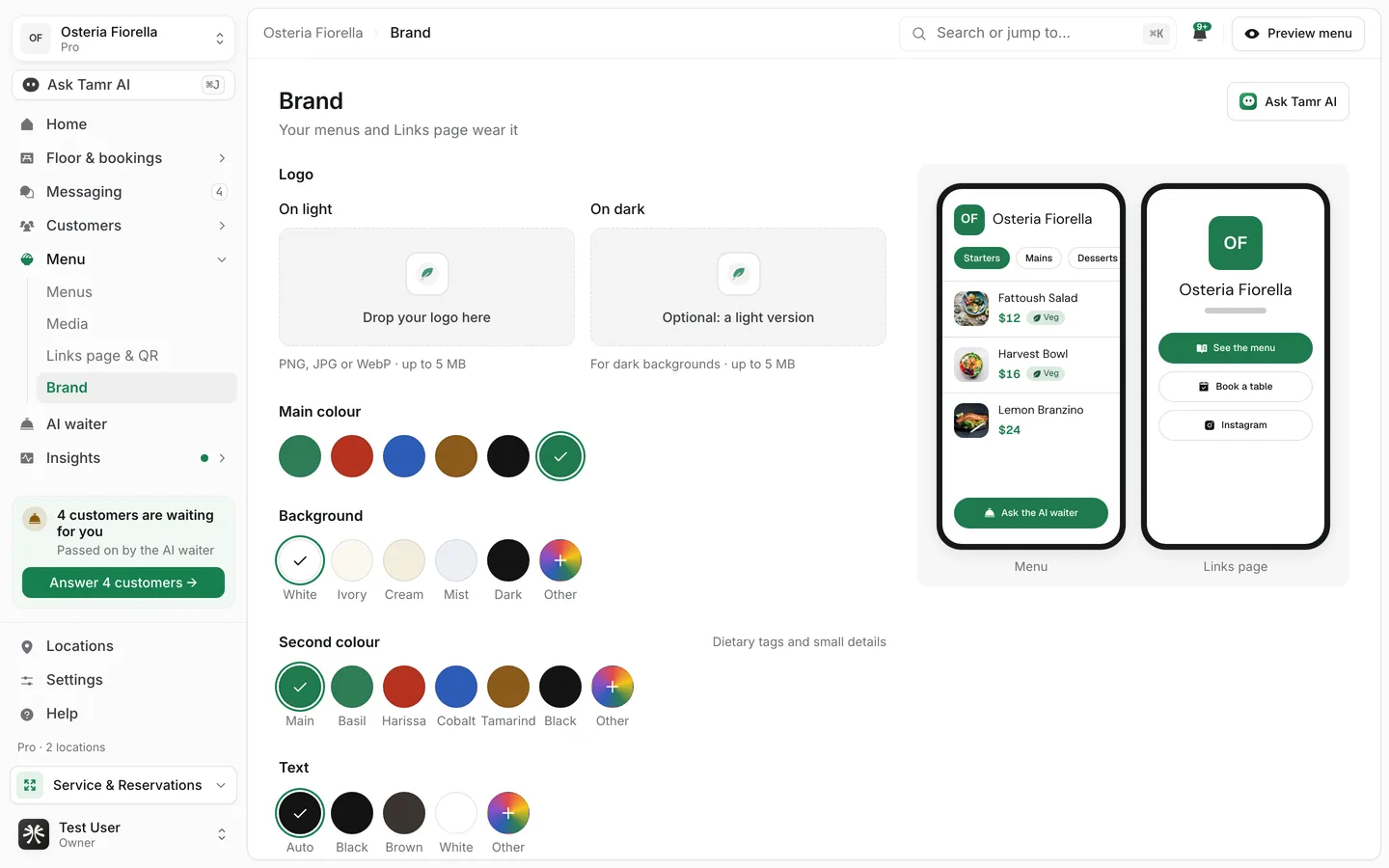
What you can set
LogoOn light · On darkMain colourcolourBackgroundcolourSecond colourProTextcolourFontspairingsPhoto stylechoiceEverything saves as you go, one field at a time.
Your logo, main colour, background and text colour are free. A second colour and your own fonts are part of Pro. On Free those fields show a small Pro mark.
How menus and the Links page use your brand
Each menu and your Links page has a Uses your brand card with a Brand and Customise switch.
- On Brand, the menu or page follows this Brand page, and changes here reach it straight away.
- On Customise, it keeps its own settings, and the card reads "Customised for this menu" or "Customised for this page".
- Switching a menu back to Brand clears its own values.
- Edit brand on that card opens this page in a new tab.
For a menu, the switch is on Design → Brand. For the Links page, it is in the designer's Colours and Fonts sections. See design a menu → and Links page and QR codes →.
Set your brand during the Kickoff
Your brand is the first step of the Kickoff. It is a short version of this page: logo, main colour, background and a font pairing. More on the Brand page opens the full set when you want it.
FAQ
Why did one menu not change when I changed my brand?
That menu is customised. Open it, go to Design → Brand, and select Brand.
Can I use a colour that is not in the swatches?
Yes. Select Other to pick any colour.
Does the photo style change my existing photos?
No. It only sets the starting style for new photos you generate with AI. You can still pick another style each time.
Related
Last reviewed October 14, 2026