
Manage photos in the media library
Picture kinds, the size guide, dishes without a photo, matching by file name, and cleaning up.
Media is every picture your menus use, in one place: dish photos, covers and banners, popup images and logos. Open it from Menu → Media, and drop files anywhere on the page to add them.
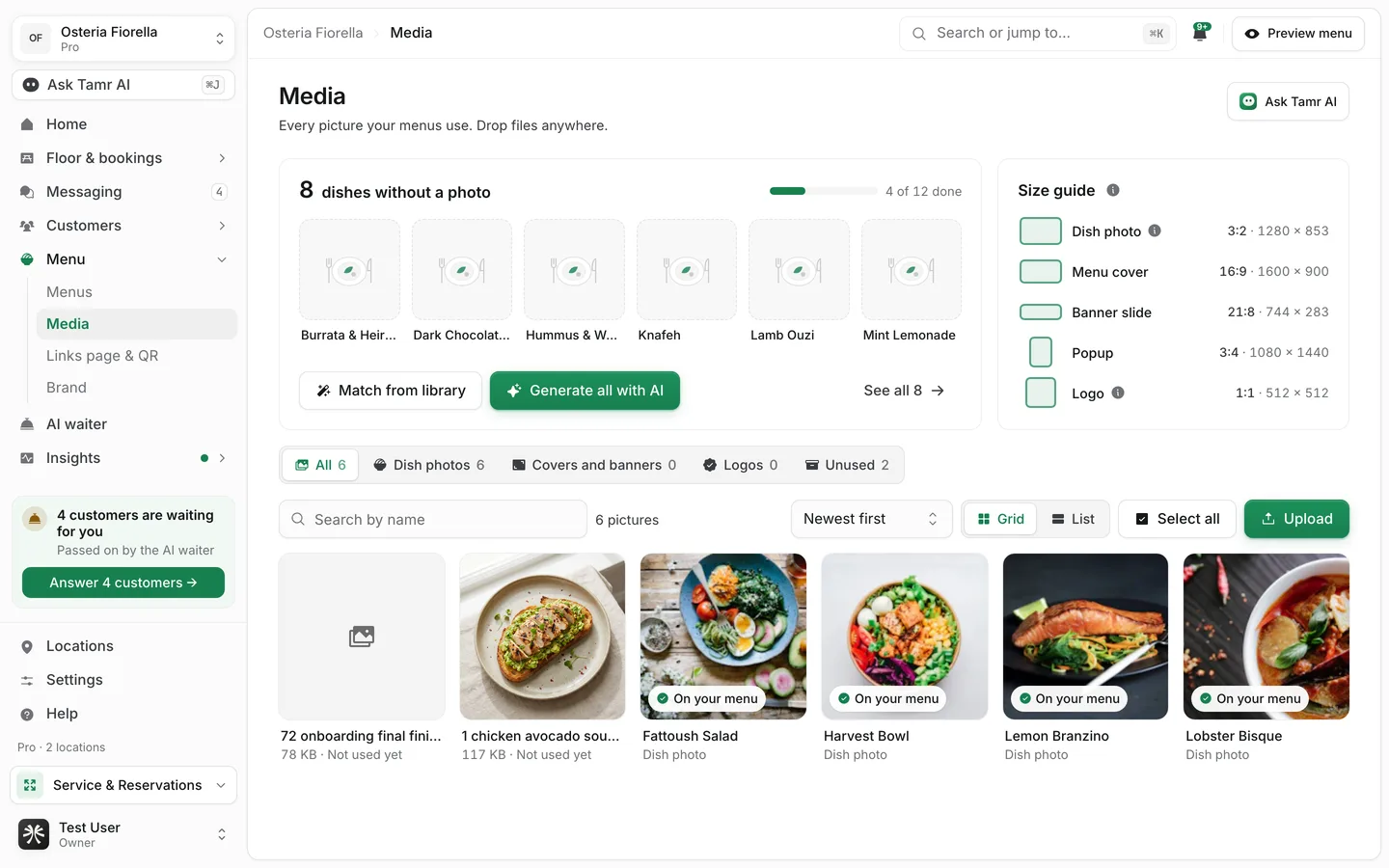
What is on the page
Dishes without a photostripSize guidereferenceFilterskindSearch, sort and viewtoolsSize guide
Upload PNG, JPEG or WebP files, up to 5 MB each. A bigger photo is fine: the menu resizes it.
| Picture | Shape | Ideal size |
|---|---|---|
| Dish photo | 3:2 | 1280 × 853 px. Lists crop it square, so keep the dish in the middle. |
| Menu cover | 16:9 | 1600 × 900 px |
| Banner slide | 21:8 | 744 × 283 px |
| Popup | 3:4 | 1080 × 1440 px |
| Logo | 1:1 | 512 × 512 px. A PNG with a clear background works best. |
Add photos
- 1Upload
Select Upload, or drop files anywhere on the page. A small panel shows each file as Waiting, Done or Failed.
- 2Put a photo on a dish
Hover a photo and select Use on a dish, or open a dish and choose From your library in its photo field.
- 3Or bring them in with your menu
Photos found when you import a menu → come along into the library.
Match photos to dishes by file name
When your photographer names files after the dishes, for example lamb-kebab.jpg, tamr can place them for you.
- 1Start the match
In the Dishes without a photo strip, select Match from library, or use Match photos to dishes by name at the foot of the library.
- 2Check each match
Every photo is paired with the dish whose name matches its file name. Exact matches show Matched; looser ones show A guess, check it. Change any pairing, or skip a photo.
- 3Confirm
Confirm to put the photos on their dishes. Nothing is placed until you do.
tamr does not look at what is in a photo. A file called IMG_2041.jpg cannot be matched; rename it first, or place it on its dish by hand.
Rename, replace and clean up
Select a photo to open it large. From there you can:
- Rename it. The name is what search and matching use.
- See its kind, dimensions, file size, when it was added and Where it shows.
- Upload a new version. It keeps its name and place in your library, and every dish using it gets the new photo.
- Download or delete it.
To tidy up, open the Unused filter. It lists library photos that no dish shows. Tick several with Select all or Shift-click, then Download or Delete. Deleted photos leave your library for good; dishes that already use them keep their photo.
Generate photos with AI
Generate all with AI in the Dishes without a photo strip asks Ask Tamr AI to create the missing photos in your brand's photo style. You can also generate one at a time from a dish's photo field.
Generating photos with AI is part of Pro. Uploading, renaming and matching your own photos are free on every plan.
FAQ
Why is a photo labelled Cover or banner when I uploaded it for a dish?
Until a dish uses it, tamr guesses a photo's kind from its shape: wide pictures count as covers or banners, tall ones as popups. Put it on a dish and it becomes a dish photo.
Does deleting a photo remove it from my menu?
No. Dishes that already show it keep their photo. Deleting only removes it from the library.
Can tamr recognise which dish is in a photo?
No. Matching works on file names only.
Related
Last reviewed October 14, 2026