
Draw your floor plan
Describe your room, import a PDF or photo, or start from a template, then arrange tables and zones.
The floor plan is the map of one location: its zones, its tables and their seats, and the room around them. The live floor, bookings, the table picker and table ordering all work from it. Each location has its own plan.
The floor plan is part of Pro. On Free, the Floor plan card on a location opens a preview with Get Pro.
Open the editor
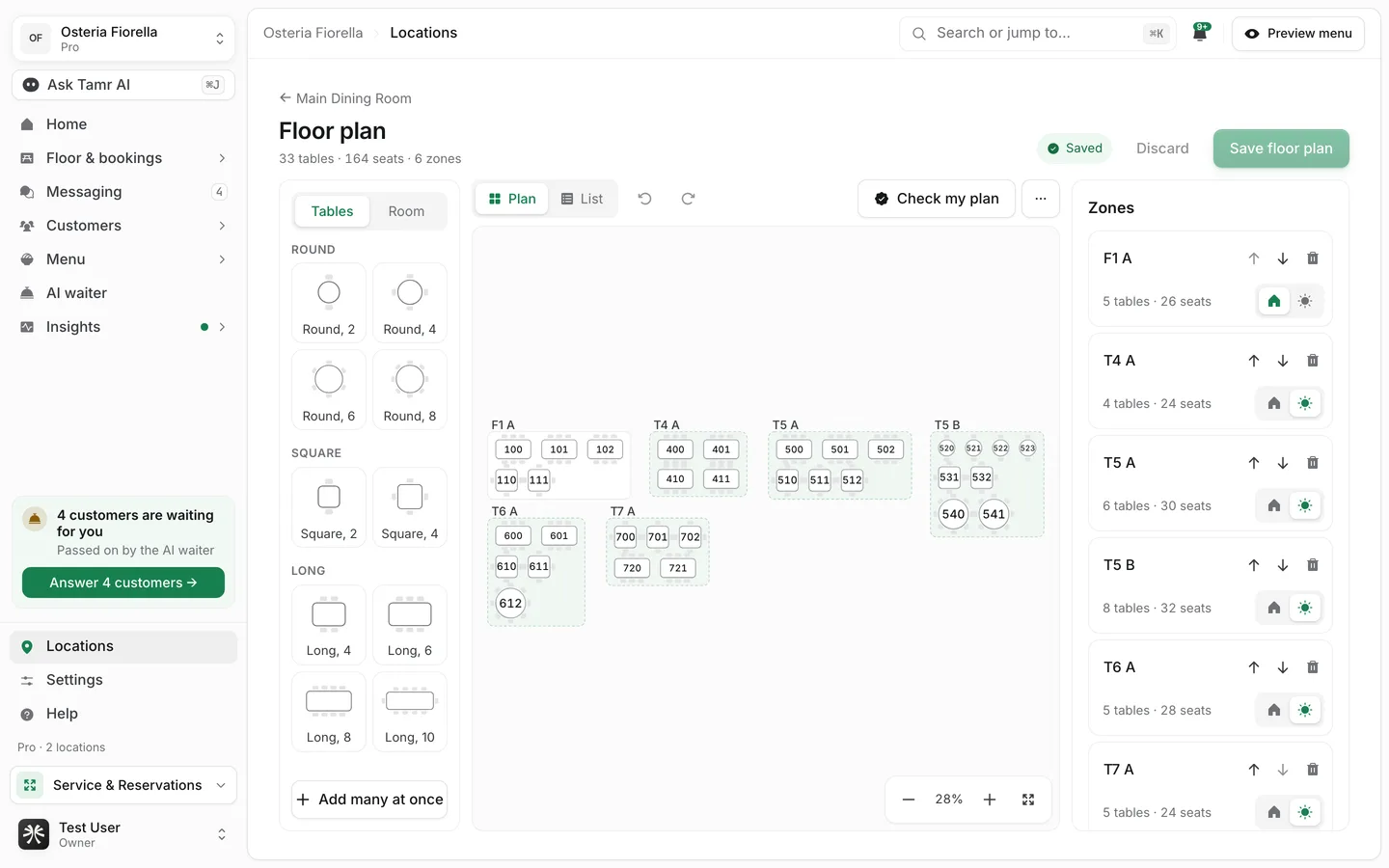
Go to Locations, open the location, and press Edit (or Draw it) on the Floor plan card. The header shows the totals, for example "33 tables · 164 seats · 6 zones".
Start a new plan
A location without a plan opens on a start screen with four ways in.
Describe itstartImport your planstartOr start from a room like yourstemplatesStart emptystartImport a plan from a PDF or photo
- 1Choose Import your plan
On the start screen, switch to Import your plan.
- 2Add the file
Drop it on Drop your plan here or press Choose a file. A PDF, a phone photo of a printed plan, or a sketch all work: PDF, PNG, JPEG or WebP, up to 12 MB. You can also paste a link to it and press Import.
- 3Check what was read
The editor opens with the zones and tables it found, and your plan faded underneath so you can check one against the other.
- 4Save
Nothing is saved until you press Save floor plan.
If the plan cannot be read, try a clearer file with Another, or switch to Describe.
Add tables
The left panel has two tabs.
TablestabRoomtabAdd many at oncebuttonOn a tablet, press Add, pick a table, then tap where it goes.
Edit tables and the room
Select a table to edit it. Drag its handles to resize it and its turn handle to turn it.
NumberfieldSeatsfieldWidth / DepthfieldTurned (°)fieldZonefieldIn serviceswitchSelect several items (Shift-click, or drag a box) to line them up: left, centre, right, top, middle or bottom edges, and Even gaps across or Even gaps down for 3 or more. The same bar turns, locks, duplicates and removes the selection. Lock in place (L) stops a table moving by accident.
Organise zones
The Zones panel lists every zone with its tables and seats.
- Move zones up or down, rename them, and mark each Indoor or Outdoor.
- Give each zone its own colour on the plan.
- Draw the room: an outline you size yourself, instead of one that follows the tables.
- Duplicate a zone, or delete it (its tables go with it, and their printed codes stop working).
Check, save and print
- 1Check my plan
Press Check my plan for everything worth fixing before your team uses the plan: tables with the same number, tables with no seats, tables outside the plan or their zone's outline, overlapping tables, tables with no room for chairs, zones with no name or no tables, and tables out of service.
- 2Save floor plan
Press Save floor plan. If a change affects tables that have bookings, tamr asks before saving. Discard throws away unsaved changes.
- 3Print or export
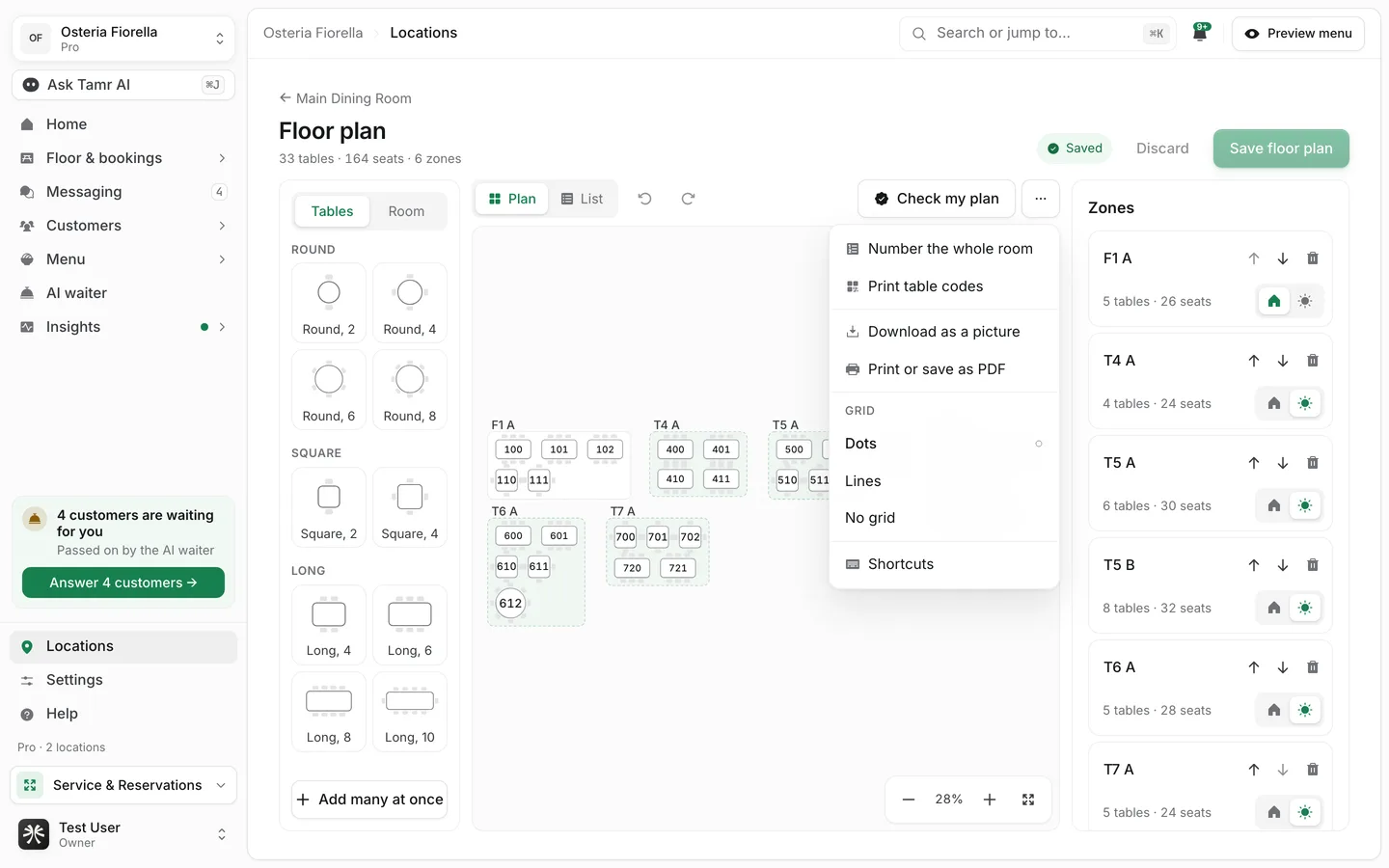
Under More (the three dots): Number the whole room, Print table codes, Download as a picture and Print or save as PDF. The same menu sets the Grid (dots, lines or none) and lists the Shortcuts.
FAQ
Does an imported plan replace my current one straight away?
No. It opens in the editor for you to check, and nothing changes until you press Save floor plan.
Can I set distances in centimetres?
No. Tables are placed and sized on the plan's grid, not in real units.
What happens to bookings on a table I remove?
tamr warns you before saving. Bookings on a table taken out of service stay on that closed table, so you can move them.
Someone else edited the plan while I was working.
Saving tells you, and offers Load their version.
Related
Last reviewed October 14, 2026