
Read and act on customer conversations
The Messaging page, its views and filters, the handover bar on chats that need you, the transcript and Details panel, and what Free shows.
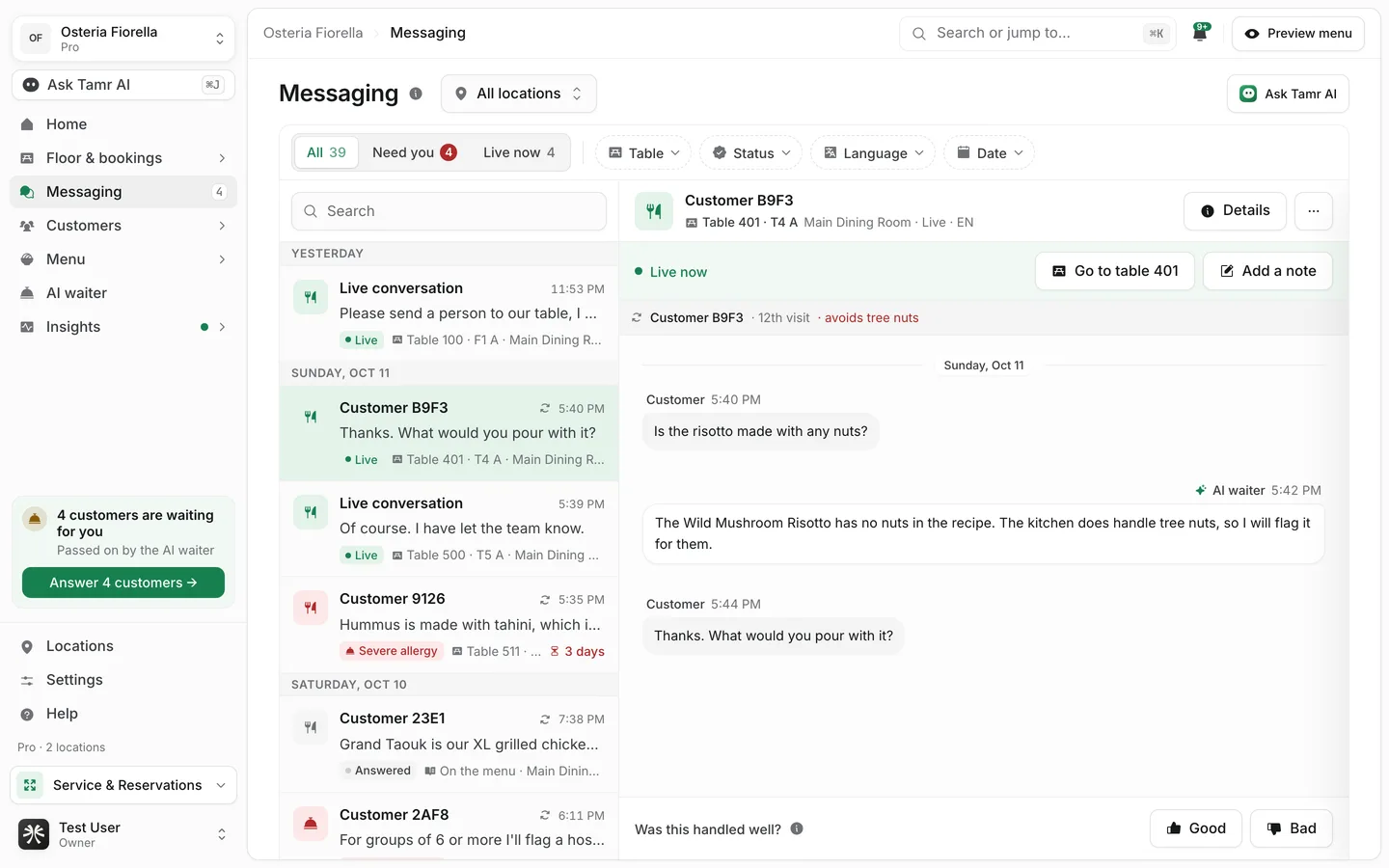
Messaging is the record of what customers asked the AI waiter. Every chat is here, from the table, from the menu without a table, and from the general assistant. Open it from Messaging in the sidebar.
Pick a view
Three views sit at the top of the list, each with a count. The page always opens on All.
AllviewNeed youviewLive nowviewFilter the list
- 1Pick a location
The location switcher beside the title shows All locations, Not at a location, or one location. With a single location there is nothing to switch.
- 2Narrow by table
The Table chip has a Where list: At the table, On the menu, no table and General assistant (asked from outside a location, for example from home). With one location picked it also lists that location's Sections, and Find a table finds one table by its code.
- 3Narrow by outcome
The Status chip filters by how the chat ended (Answered, Couldn't answer, Left mid-chat, Left unhappy) and by what the AI waiter raised, such as allergies, complaints or a menu gap.
- 4Narrow by language or date
Language appears once chats come in more than one language. Date offers Today, Yesterday, Last 7 days, Last 30 days or a range you set.
- 5Search
Type in Search, or press /, to find chats by what was said.
While anything narrows the list, the bar shows the number of matches and Clear all, which keeps your location and view. On a phone or tablet the chips sit behind a Filters button. The list loads 50 chats at a time; Load older conversations fetches the next 50. New chats appear without a reload.
Step in when a chat needs you
The AI waiter hands a chat to your team when it should not answer alone: a severe allergy, a complaint, a customer asking for a person. Those chats land in Need you, and the transcript opens with a Handed to your team bar.
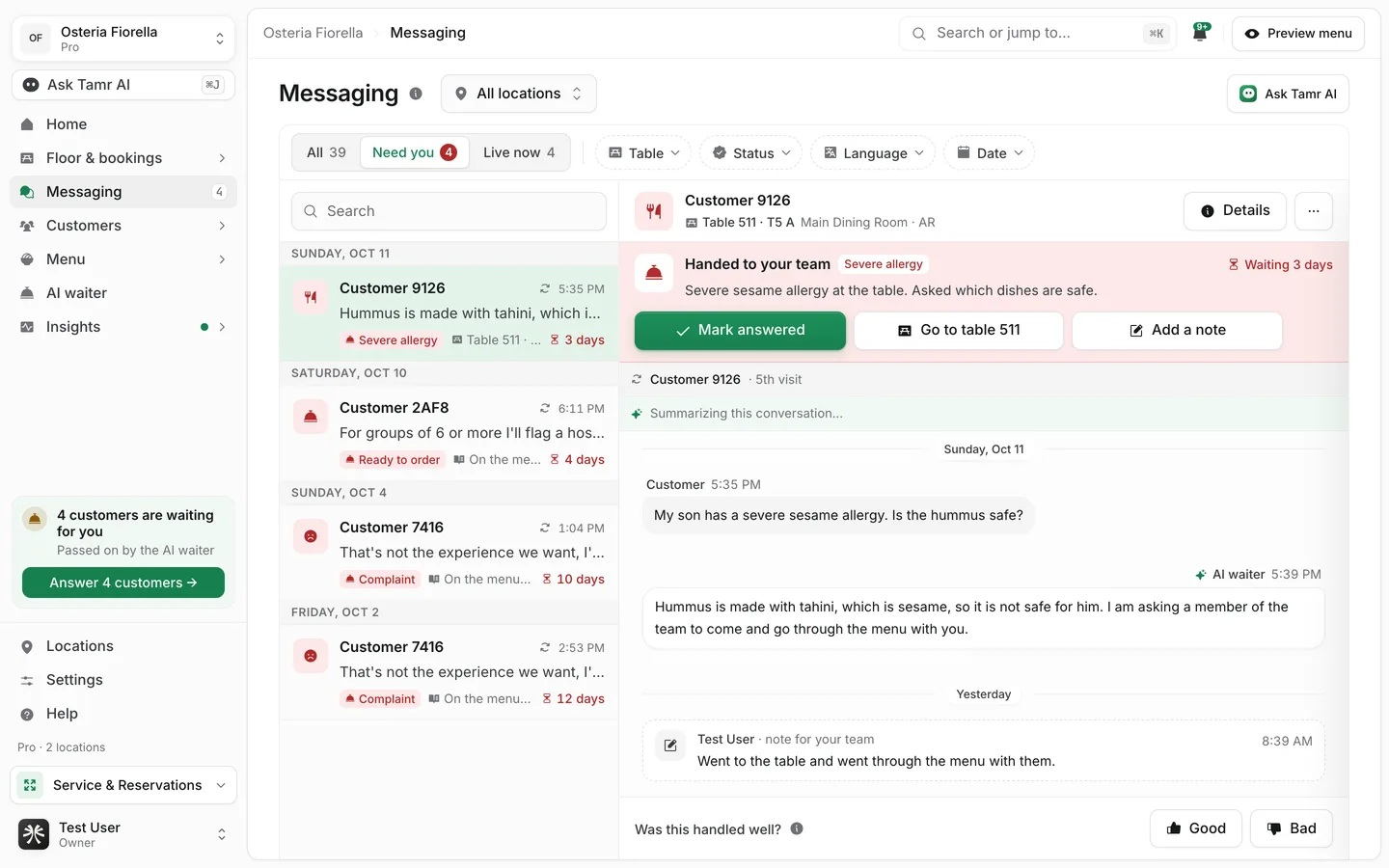
ReasonenumWaittimeMark answeredactionGo to tableactionMessage on WhatsAppactionAdd a noteactionThe chat is between the customer and the AI waiter. To help, walk over to the table, or message them on WhatsApp if you have their number.
A chat that is still going shows a Live now bar instead, with Go to table and Add a note.
Read a transcript
The transcript shows the customer's messages and the AI waiter's replies, plus what the waiter did along the way:
- Dish cards with photo, name, price and tags, under a line such as Showed 3 dishes or Showed a pairing.
- Booking cards (Booked a table, Changed the booking, Cancelled the booking), dishes added to the customer's list, and requests for a server.
- Short event lines such as Called your staff over, Flagged an allergy or Recommended a dish.
- Your team's notes, marked note for your team.
The Details panel beside it covers what happened, flags, dishes mentioned, where the chat took place (table, location, AI waiter and menu, each a link), the topic, your team's ratings, the customer, allergies flagged and what was remembered from past visits.
At the bottom, Was this handled well? takes Good or Bad. On a chat the waiter could not answer, Teach the AI waiter opens the waiter's settings in a new tab so you can add the missing answer.
Open the customer
Select the customer in the Details panel for a quick look, with See all N conversations to filter the list to their chats. Hold ⌘ (or Ctrl) while you select, or middle-click, to open their full profile in a new tab.
Delete a conversation
Owners and admins can open More actions (···) and select Delete conversation. The transcript is removed for good and drops out of your insights.
What the Free plan shows
The full conversation archive is part of Pro. On Free, Messaging keeps the counts and your 3 newest conversations in full.
Older chats appear as locked rows: you see the topic, language, status, location and time, but not the words. Search and filters only reach the newest 3. Get Pro asks the tamr team to call you about upgrading.
FAQ
What is the difference between Need you and Couldn't answer?
Need you means the AI waiter deliberately handed the customer to your team, for example for a severe allergy. Couldn't answer means the waiter did not have the answer and said so. Use Teach the AI waiter to fix the second kind.
Does a customer asking for a server land in Need you?
No. A routine request for a server shows in the transcript and on the floor, but the chat stays out of Need you.
What are General assistant chats?
Questions asked from outside a location, for example from home before a visit. Find them with Table → Where → General assistant.
Related
Last reviewed October 14, 2026